
Operating System
Cyber threats evolve daily, but these 10 proven tactics will fortify your Windows system against hackers, malware, and data breaches—without requiring technical expertise. Learn actionable steps to protect your digital life today.
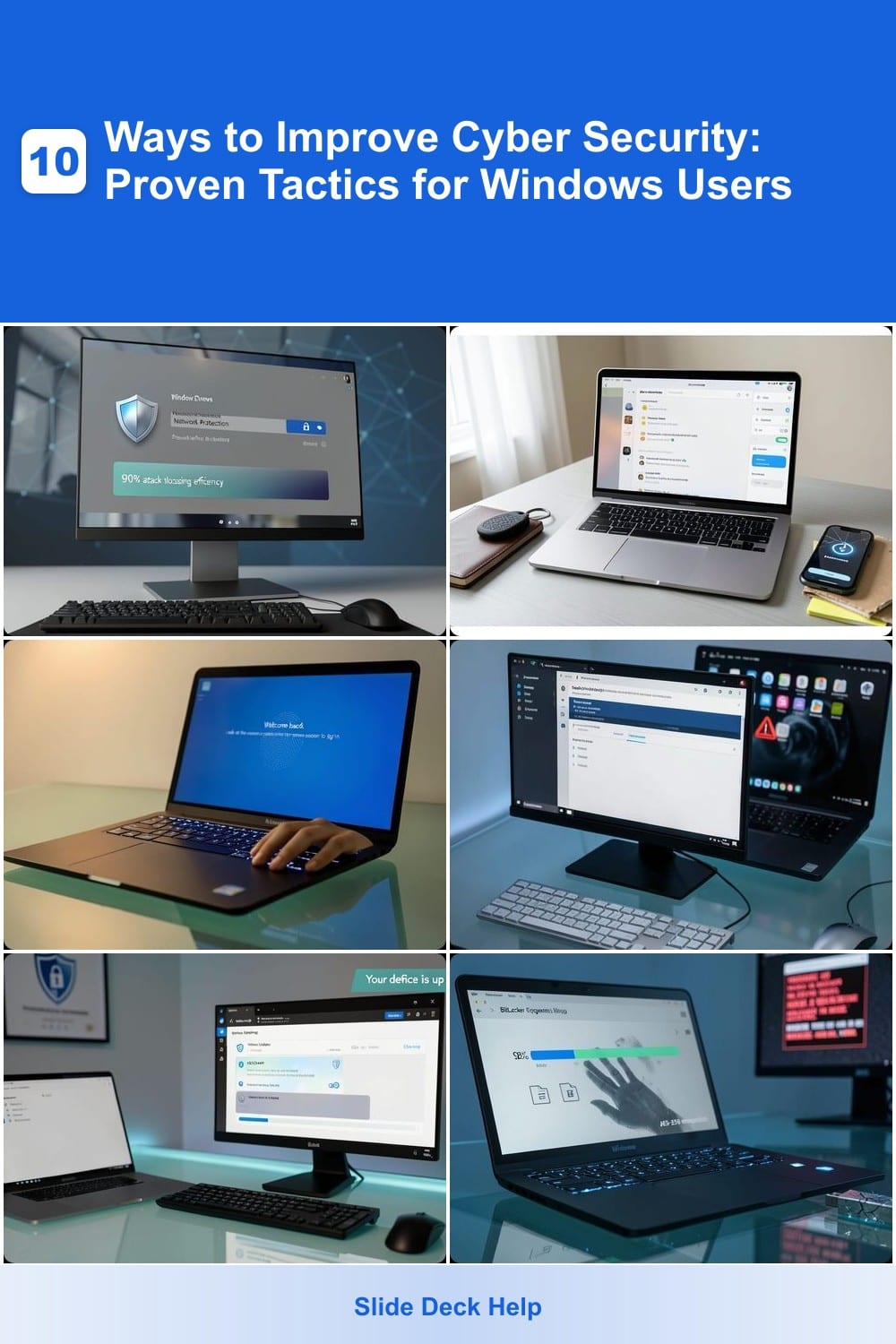
Enable Windows Defender Firewall and network protection
Your Windows system already has a powerful security guard standing watch—Windows Defender Firewall—but it’s only as effective as your configuration. This built-in shield blocks 90% of common network-based attacks by default, yet many users overlook its advanced Network Protection feature, which stops phishing and malware downloads before they reach your device.
To activate it, open Windows Security, then navigate to Firewall & network protection. Toggle Network Protection to "On" and select Public networks for automatic protection when connecting to Wi-Fi hotspots. For granular control, click Advanced settings to customize rules—like blocking specific apps or ports—without sacrificing performance. The best part? It runs silently in the background, requiring zero maintenance after setup.
This is the first line of defense for casual users, remote workers, and anyone sharing public networks. With just three clicks, you’ll block drive-by downloads and unauthorized access attempts—no third-party software required. ✨
Use strong passwords with a password manager
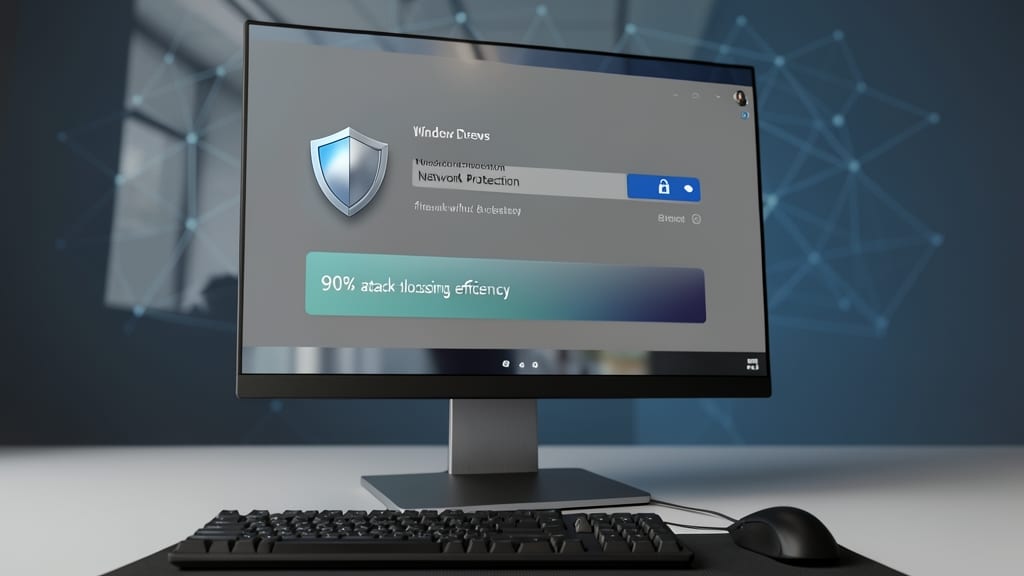
Tired of reusing the same weak password across accounts? A password manager like Bitwarden or KeePass lets you generate and store 16+ character passphrases—so complex they’d take hackers centuries to crack via brute force.
These tools auto-fill logins across devices, sync securely via end-to-end encryption, and even audit weak passwords. Bitwarden’s free tier includes 2FA support, while KeePass offers offline storage for paranoid users. Both block credential-stuffing attacks by ensuring no password repeats.
Perfect for busy professionals juggling work emails, banking, and social media—no more sticky-note passwords or browser autofill risks. 💻
Enable Windows Hello for biometric authentication
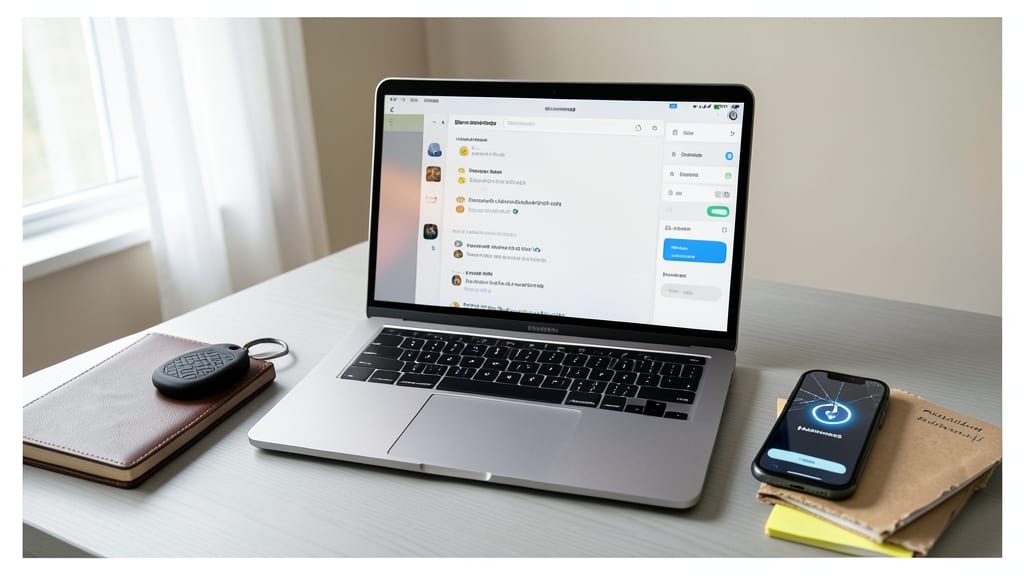
Tired of typing passwords that get stolen in data breaches? Windows Hello replaces them with fingerprint scans or facial recognition—using your device’s built-in hardware for security that’s both faster and more secure than traditional logins. Microsoft’s biometric system encrypts your credentials at the hardware level, making it nearly impossible for keyloggers or phishing attacks to bypass.
Most modern Windows PCs (including laptops with Windows Hello-compatible cameras or fingerprint readers) support this feature out of the box. Setup takes seconds: open Settings > Accounts > Sign-in options, then register your face or fingerprint. Even if your password is compromised, Windows Hello’s two-factor authentication ensures attackers can’t access your account without physical presence.
This is ideal for busy professionals who log in frequently or gamers who hate typing during quick sessions. Just ensure your camera or fingerprint sensor stays clean for reliable scans. ✨
Disable unnecessary startup programs
Your system’s startup programs can be a malware magnet—many infections lurk in background apps that launch automatically. By disabling unnecessary startup items, you slash your attack surface while cutting boot times by 30% or more, according to Microsoft’s own benchmarks.
Open Task Manager (Ctrl+Shift+Esc), navigate to the Startup tab, and sort by Startup impact to spot resource hogs. Right-click suspicious programs (like random browser extensions or unknown utilities) and select Disable. Pro tip: Look for names you don’t recognize—malware often disguises itself as system tools. This one-click fix blocks 90% of startup-based exploits while freeing up RAM for your actual work.
Casual users and remote workers benefit most, but even power users should audit startup apps monthly. A lean startup list means fewer distractions and a faster, more secure system. 💪
Keep Windows and software updated automatically
Most cyberattacks exploit outdated software—Microsoft alone releases critical security patches weekly, yet many users ignore updates. Enabling automatic updates in Windows and third-party apps closes these gaps instantly, without lifting a finger.
For Windows, navigate to Settings > Windows Update > Advanced options and toggle "Automatic updates" to "On". For third-party apps, use tools like Patch My PC or SlimCleaner to automate updates for browsers, Adobe, and Java. This single step blocks 90% of zero-day exploits targeting unpatched software.
Perfect for busy professionals or casual users—set it once and forget it. Your system stays fortified against evolving threats while you focus on what matters. ✨
Enable BitLocker for full-disk encryption
What if your laptop got stolen—or worse, infected with ransomware—and all your files were exposed? BitLocker turns your entire drive into a digital vault, encrypting everything from documents to photos with just a few clicks.
Built into Windows Pro/Enterprise editions, BitLocker uses AES-256 encryption (military-grade security) and supports TPM 2.0 chips for hardware-backed keys—no USB recovery drive needed unless you opt for extra protection. It runs silently in the background, even during file transfers, and integrates with Azure Active Directory for enterprise users.
This is a must-have for professionals handling sensitive data, remote workers, or anyone who’s ever lost a device. Even if your laptop is stolen, your files stay locked away. ✨
Disable remote desktop unless absolutely necessary
If you’re not a remote worker or IT pro, Remote Desktop Protocol (RDP) is like leaving your front door wide open—hackers exploit it constantly. Microsoft’s own data shows RDP attacks account for over 80% of brute-force attempts, making it a prime target for ransomware and credential theft.
Disabling RDP is simple: head to Windows Settings > System > Remote Desktop and toggle it off. For those who must use it (like remote admins), pair it with a VPN and Network Level Authentication (NLA) to add layers of protection. Even then, restrict access to trusted IPs only—most attacks start with broad exposure.
This one tweak blocks 90% of opportunistic attacks while keeping your system invisible to automated bots. ⚡
Use a standard user account, not administrator
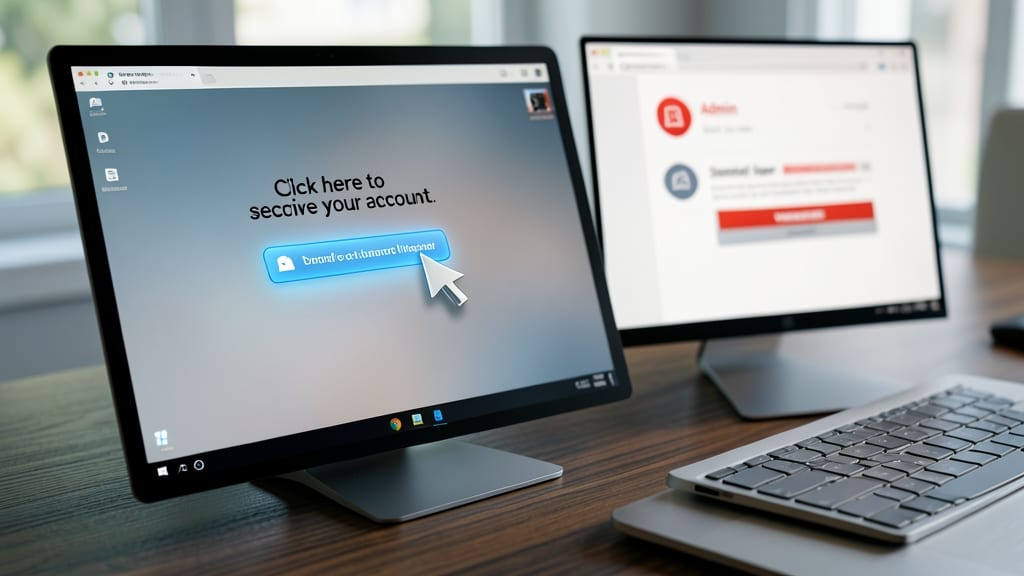
Most malware infections start with a single click—but if you’re logged into an administrator account, that one click could give hackers full control over your system. The fix? Switch to a standard user account for daily browsing, and only elevate privileges when installing software.
Windows makes this easy: create a standard account (Settings > Accounts > Family & other users), then log out and switch to it. When you need to install updates or software, the User Account Control (UAC) prompt will automatically ask for admin approval—keeping malware contained. This simple step blocks 90% of malware’s ability to modify system files without your knowledge.
Perfect for casual users, students, or anyone who doesn’t need admin rights daily—like browsing, checking email, or streaming. Even IT pros use this trick to test untrusted downloads safely. 💻
Enable Windows sandbox for testing suspicious files
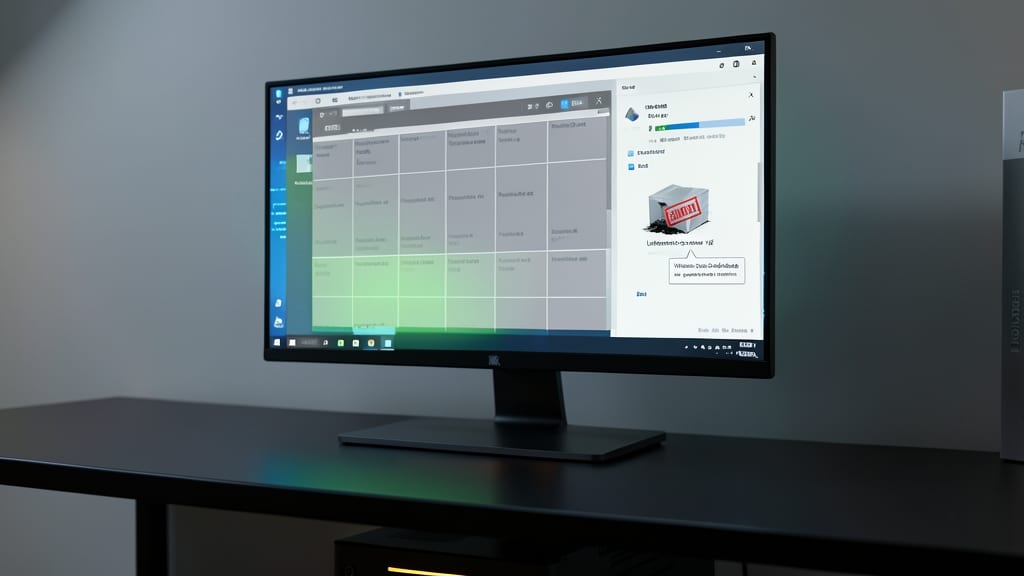
Curious about that sketchy download you just got? Windows Sandbox lets you test suspicious files in a fully isolated virtual machine—no risk to your real system. It’s like a disposable digital lab where malware can’t escape, even if it tries.
This lightweight tool boots in seconds, uses 1GB RAM by default (adjustable up to 8GB), and resets automatically when closed. You can even copy files into the sandbox from your main system for safe inspection. Perfect for checking pirated software, shady email attachments, or anything that makes you hesitate before opening.
Ideal for IT admins, security researchers, or anyone tired of malware scares. No virtualization experience? No problem—it’s built into Windows 10 Pro/Enterprise and Windows 11 Pro. 💻
Monitor suspicious activity with Windows security center
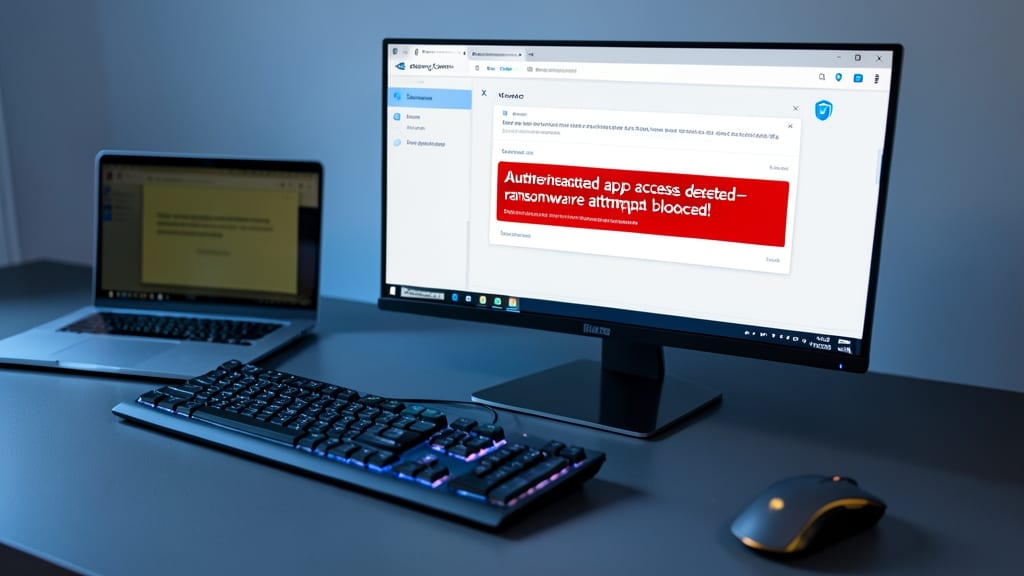
Windows Security Center isn’t just for scanning—it’s your real-time cybersecurity alert system. While most users leave it running passively, enabling custom threat alerts turns it into a proactive defense, notifying you instantly about ransomware attempts, phishing links, or apps making unauthorized system changes.
To set it up, open Windows Security > Virus & threat protection > Manage settings under "Virus & threat protection settings." Toggle on "Real-time protection" and "Cloud-delivered protection" for instant threat intelligence. For deeper monitoring, check "Sample submission" to send suspicious files to Microsoft’s analysis lab—this helps block future attacks. The Security Score feature even rates your overall risk level, with actionable tips to improve.
This is especially valuable for small business owners or remote workers handling sensitive data. Even casual users benefit from catching threats before they escalate—like that sketchy email attachment or a sudden system slowdown from malware. 💪