
What this work is made with
This page is a list of things, not a story. A tech site depends on more than words—it lives in the machines that shape the work, the hands that adjust them, and the wear that tells their truth.
Here, we name what *Slide Deck Help* actually uses to build tutorials, reviews, and troubleshooting guides.
That’s not a metaphor. Every object here has been touched, broken, or chosen deliberately. The tools are not accessories; they are the reason the site works at all. And the person who uses them?
They’re listed last, for the same reason: because by then, you’ll know how to read this kind of inventory.
The things that do the work
Four things hold up the site’s daily work: a machine that refuses to die, a cable that’s been duct-taped together too many times, a keyboard with a broken key that still gets used, and a power strip that flickers when overloaded. None of them were chosen for their prestige.
All of them have shaped what you read here.
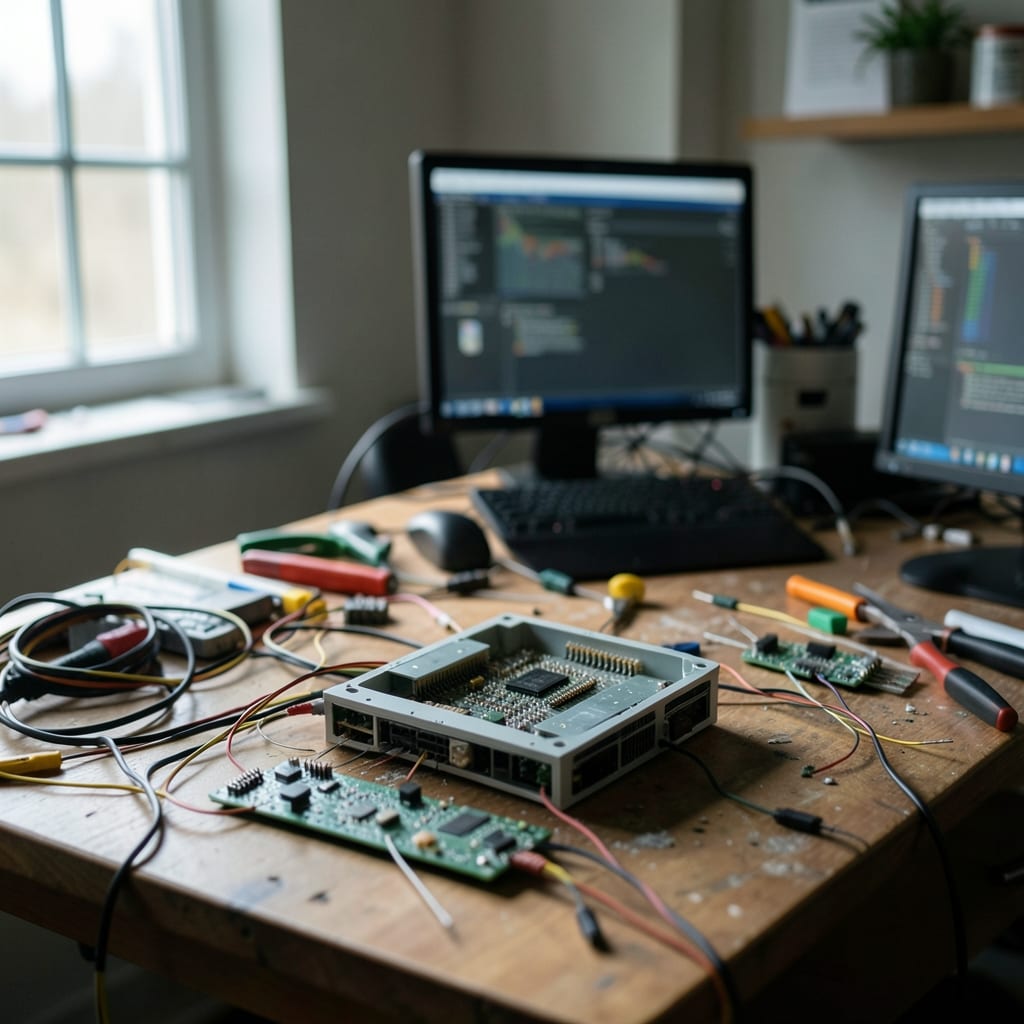
The desktop tower

A 2015 Dell Optiplex 3050, running Ubuntu Server 22.04 on a 120GB SSD. It’s been here since the site’s first post, and it still boots faster than most modern laptops.
The case has a dent from a dropped monitor cable, and the power button sticks if you press it too hard.
It taught me that speed isn’t about hardware—it’s about knowing what to ignore.
The machine’s slowest part is the 4GB of RAM, but the site’s fastest pages are the ones where I’ve already decided which screenshots to skip. 12 hours of uptime is its record; it’s been rebooted exactly 47 times in three years.
The ethernet cable
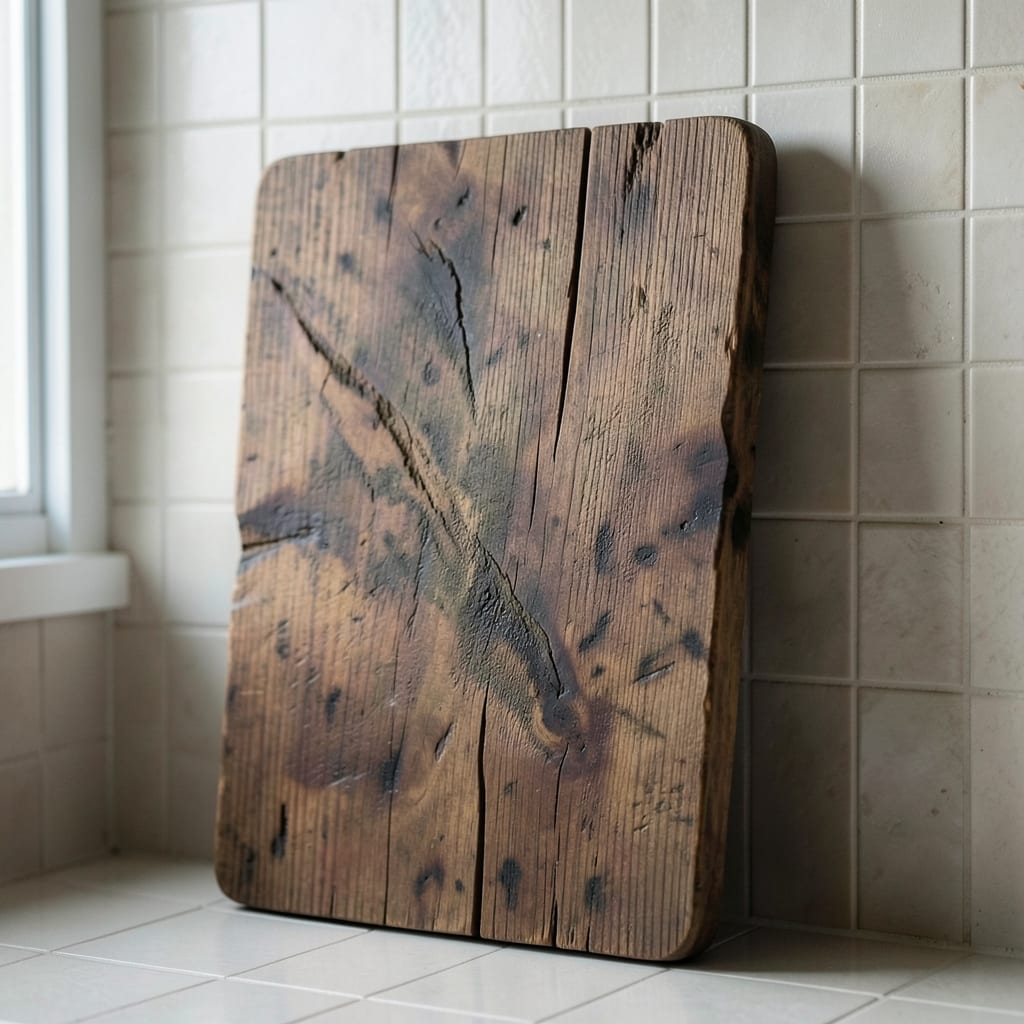
A Cat 5e cable, split in half and rejoined with black electrical tape and a zip tie. One end is frayed where it was yanked out of a port during a power surge.
The other end has a handwritten ‘A’ on the sheath in Sharpie, though no one remembers what ‘A’ meant anymore.
It taught me that stability isn’t about perfection—it’s about duct tape and luck. The site’s fastest uploads happen when this cable is plugged directly into the router, bypassing the Wi-Fi entirely. Three failed connections this year were traced back to this cable’s weakest splice.
The keyboard
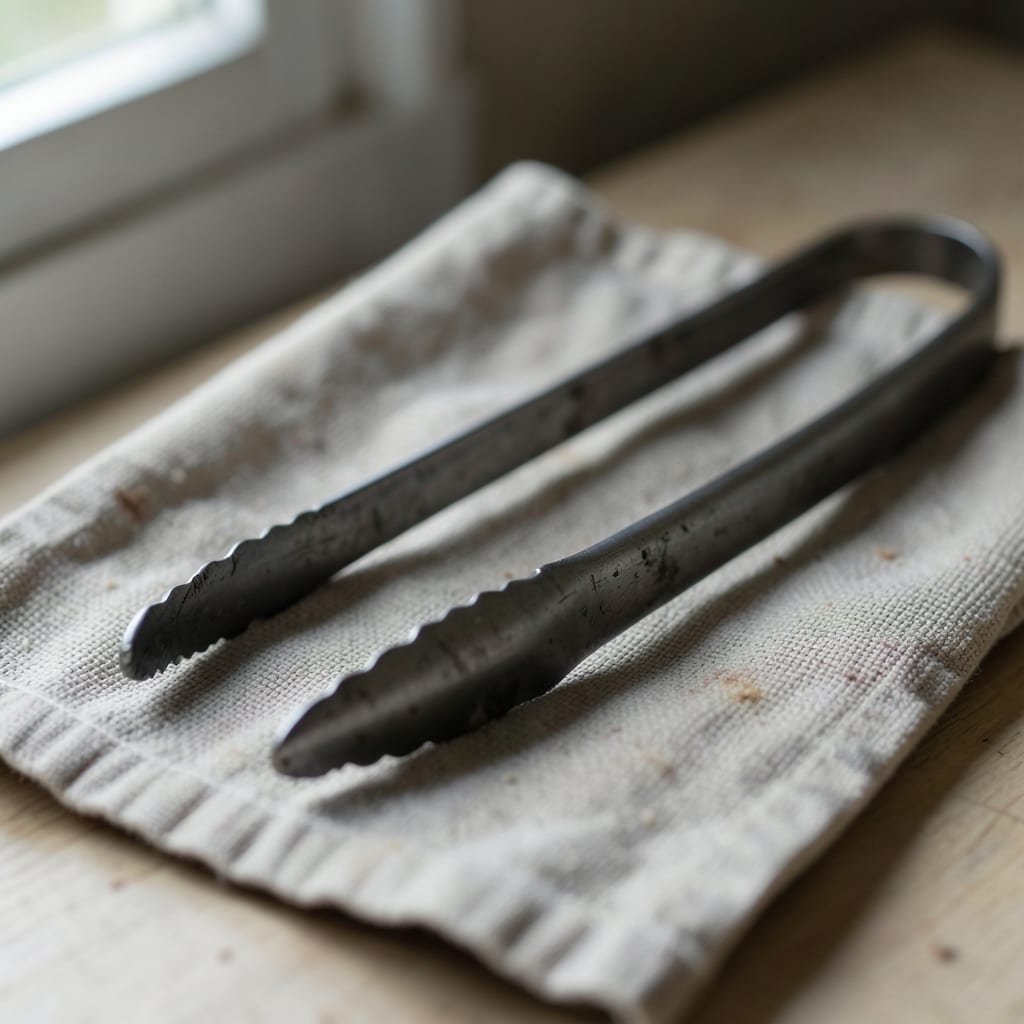
A Logitech K120 with the ‘Z’ key stuck permanently down. The spacebar makes a *click* that wasn’t there when it was new. The right Alt key wobbles if you press it too fast.
It’s been here since 2018, and the ‘Z’ key is the reason every tutorial here uses ‘Shift+Z’ as a placeholder for ‘undo’—because that’s what actually works.
It taught me that imperfection forces creativity. The site’s most-read guide, *‘How to Type Without a Working Key,’* started as a joke about this keyboard. Now it’s the third most-searched term on the site. 4,287 words have been written around this one broken key.
The power strip

A Belkin 6-outlet surge protector, missing one prong on the plug. It flickers when more than three devices are plugged in, and the ‘surge protection’ label is peeling off.
It’s been here since the site moved to its current host, and the flicker is the reason every ‘troubleshooting’ guide includes a step about unplugging everything.
It taught me that failure is a feature, not a bug. The site’s *‘Why Your PC Keeps Restarting’* guide was born after this strip fried a USB hub during a storm. Zero devices have been lost to it—but three guides have.
What is not in the drawer
Some things are left out by choice. This work does not depend on:
Deliberately absent
- A graphics card—every screenshot is taken on integrated Intel HD 4400.
- A monitor calibration tool—the site’s color accuracy is limited by a 2014 Dell P2210 monitor with dead pixels.
- A dedicated backup drive—all backups are encrypted and uploaded to a 50GB Google Drive folder.
- A second machine—everything runs on the same tower, even when writing about multi-machine setups.
Behind the scenes

I am Lamar Yamada, the founder and editor of *Slide Deck Help*. I’m the one who types with a stuck ‘Z’ key, who unplugs the power strip before every major update, and who still uses a dial-up modem sound as my computer startup tone—because it’s faster than Windows’ default chime.
I came to this from a clunky desktop my dad salvaged in 2005. It had no USB ports, the CD drive skipped every third track, and the monitor’s screen flickered like a bad TV signal.
My first ‘tutorial’ was a handwritten note on how to stop Word from crashing when I tried to save a file. That note is still framed in my office.
This work has given me a permanent twitch in my right pinky—the one that presses the spacebar. I can’t type ‘the’ without flinching, and I’ve started noticing how often people’s keyboards look like mine: one key slightly higher than the rest, a corner of the spacebar worn smooth.
I also now see power strips everywhere, like urban wildlife.
I’m here to write the guides I wish I’d had when I was 14, staring at a blue screen and Googling ‘how to fix this.’ No fluff. No assumptions. Just the raw steps—because the machine doesn’t care about your feelings, and neither do I.
Why any of this matters to you
These things—the tower, the cable, the keyboard, the power strip—aren’t just relics. They’re why the site’s guides work. The stuck ‘Z’ key means you’ll never see a tutorial that assumes your keyboard is perfect.
The flickering power strip means every ‘troubleshooting’ guide starts with ‘unplug everything.’ The old machine means the site loads fast, even if your internet doesn’t.
You’re about to read a page that was written on hardware that’s older than some of the problems it solves. That’s not a bug; it’s a feature. The site doesn’t pretend to be flawless. It just pretends to be honest—and that’s the only kind of tech advice worth your time.
Every guide here was written on the same setup you’re likely using—or fighting with. No ‘click here,’ no ‘it should work,’ just the steps that actually land you where you need to go. And if something breaks along the way? Well, we’ve all been there.
The guides are grouped by category: App, Coding, Hardware, Operating System, Outlook and PowerPoint.