
Tip & Trick
Struggling to find files in cluttered folders? Mastering Microsoft's file naming conventions can save hours weekly. These pro tips transform chaos into a searchable, organized system that works across Windows, OneDrive, and Office apps.
Year-Month-Day Date Prefixes for Timestamps
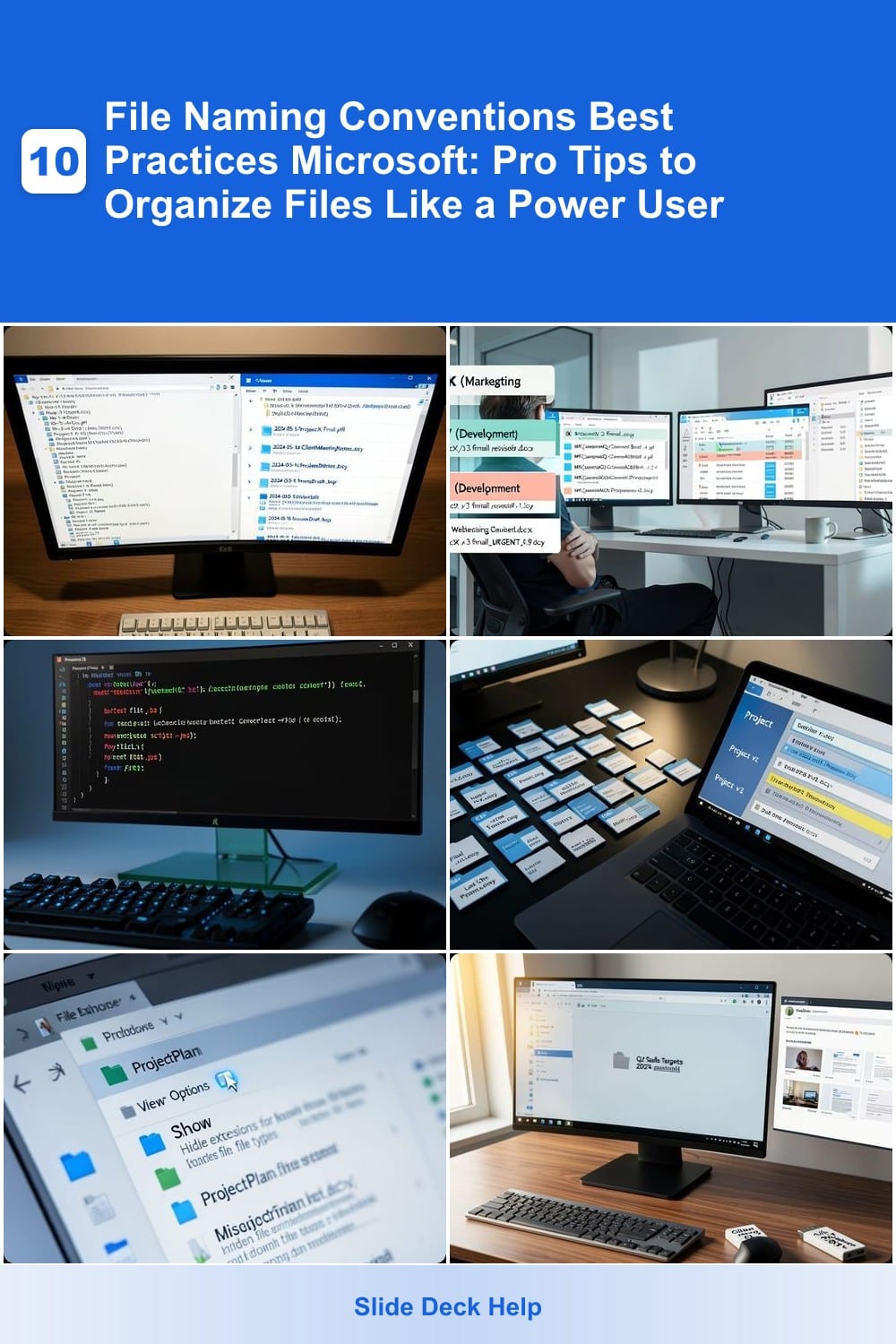
Ever spent minutes scrolling through files named "May 15 Report" or "05-15-24 Doc"? A year-month-day prefix (like 2024-05-15_ProjectX) solves this instantly by forcing chronological sorting in Windows Explorer and Office apps.
This format ensures files appear in order when sorted alphabetically—no more guessing whether "05-15" or "05-16" came first. It also works seamlessly with OneDrive indexing and Windows Search, making retrieval effortless. The underscore after the date keeps the filename clean while separating metadata from the project name.
Perfect for professionals managing long-term projects or shared drives where multiple team members add files. This small tweak eliminates the frustration of misfiled documents. ⚡
Department-Project-Client Code Structure
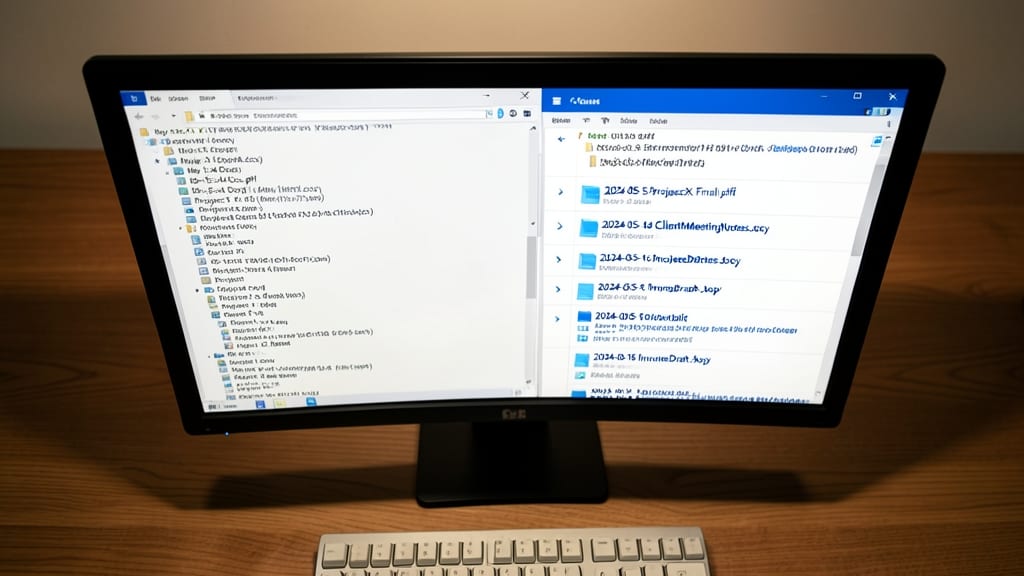
Tired of digging through shared drives cluttered with "ProjectXv3final.docx" duplicates? A department-project-client structure keeps teams aligned while preventing filename collisions—even when multiple stakeholders work on the same files.
Start with a 3-letter department code (e.g., MKT for Marketing), followed by the project name and client identifier (e.g., MKT-2024-Q2-SalesReport_Nike.xlsx). This format scales across OneDrive shares, SharePoint libraries, and local drives, ensuring files stay organized even when renamed. The hierarchy also works seamlessly with Windows Search and Office apps, since the structure mirrors how teams naturally think about their work.
Perfect for agencies, corporate teams, or any group juggling multiple clients—this system cuts down on "Which version is this?" confusion while keeping everything searchable. 💻
Underscores Over Spaces for Scripts

Scripting in Windows? Spaces in filenames can silently break your batch files and PowerShell scripts—turning a simple copy command into a headache. The fix is simple: use underscores () instead of spaces to avoid parsing errors and ensure your automation runs smoothly.
Command-line tools like PowerShell and Windows CMD interpret spaces as argument separators. A filename like My Script.ps1 becomes two arguments, while MyScript.ps1 executes as a single file. This rule applies to batch files (.bat), PowerShell scripts (.ps1), and even VBScript (.vbs)—anything run from the terminal.
Developers and sysadmins managing automated tasks will appreciate this rule the most. It’s a small habit that prevents hours of debugging frustration when scripts fail unexpectedly. 💻
Version Control with Suffix Numbers
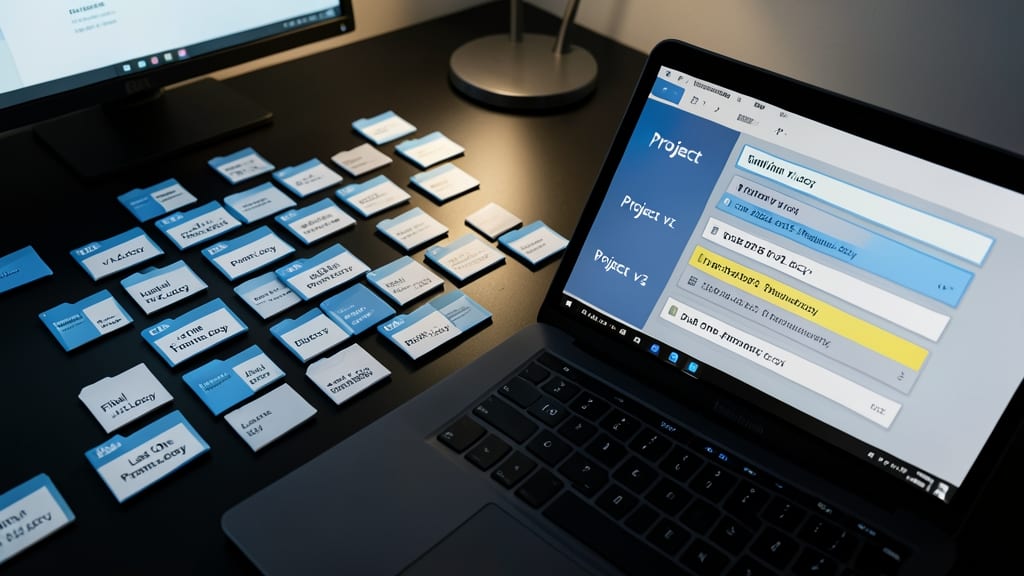
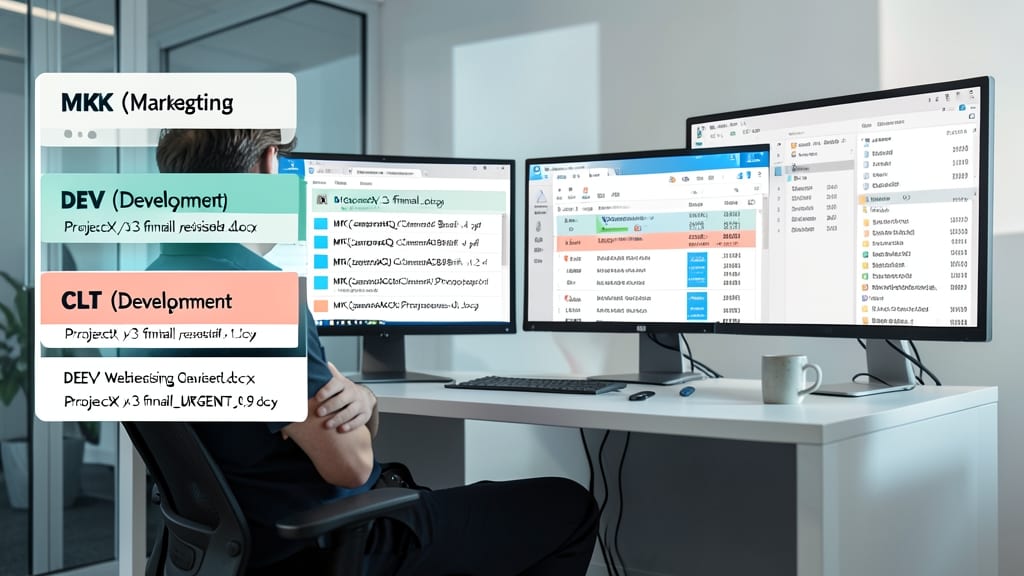
Tired of digging through folders filled with "FinalFinalv2.docx" and "Draft20240515Revised.docx"? A simple suffix numbering system (like "Projectv1.docx") keeps versions clear while staying compatible with Microsoft Office’s built-in version history.
Start with v1 for the first draft, then increment (v2, v3_) as you revise. This method avoids confusion in shared drives and syncs seamlessly with Office 365’s version tracking. Bonus: It works flawlessly with OneDrive’s file recovery—just restore the exact version you need without guessing.
Perfect for collaborative teams or solo users who edit documents frequently. No more lost work or endless "Which one is the final?" debates. ✨
File Type Extensions Always Visible

Windows hides file extensions by default, but that’s a silent productivity killer in shared folders. A file named "ProjectPlan" could be anything—until you double-click and realize it’s a PDF instead of an Excel file.
To fix this, navigate to File Explorer > View > Options > Change folder and search options > View tab, then uncheck "Hide extensions for known file types." This forces Windows to display .docx, .xlsx, or .ps1 suffixes, making it instantly clear what each file contains. It’s especially useful in team environments where file types might not match their icons.
This tweak is perfect for IT admins managing shared drives, developers collaborating on scripts, or anyone who’s ever wasted time opening the wrong file type. ⚡
Keyword-Based Naming for Search Optimization
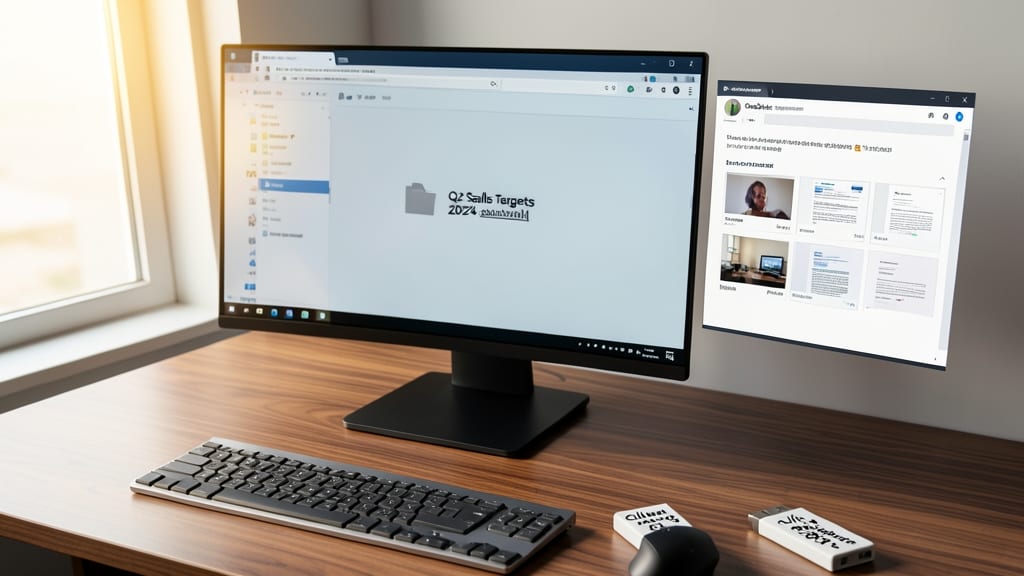
Tired of digging through folders to find that one file? Keyword-based naming turns your file system into a search powerhouse—especially when paired with Windows Search and OneDrive indexing. A filename like Q2SalesTargets2024.xlsx isn’t just organized; it’s findable in seconds, while Document1 gets buried in a sea of generic names.
Microsoft’s built-in search tools prioritize filenames containing specific keywords (like project names, dates, or departments) over vague labels. For example, searching for "Q2 Sales" instantly surfaces Q2SalesTargets2024.xlsx—no manual scrolling required. OneDrive syncs these indexed files across devices, so your search results stay consistent whether you’re on your PC or phone. The key? Use underscores (not spaces) and place the most critical keywords first to maximize search relevance.
This approach is a game-changer for teams collaborating in OneDrive/SharePoint or freelancers juggling multiple projects. Spend less time searching and more time working—your future self will thank you. ⚡
Max 255 Characters with Critical Info First
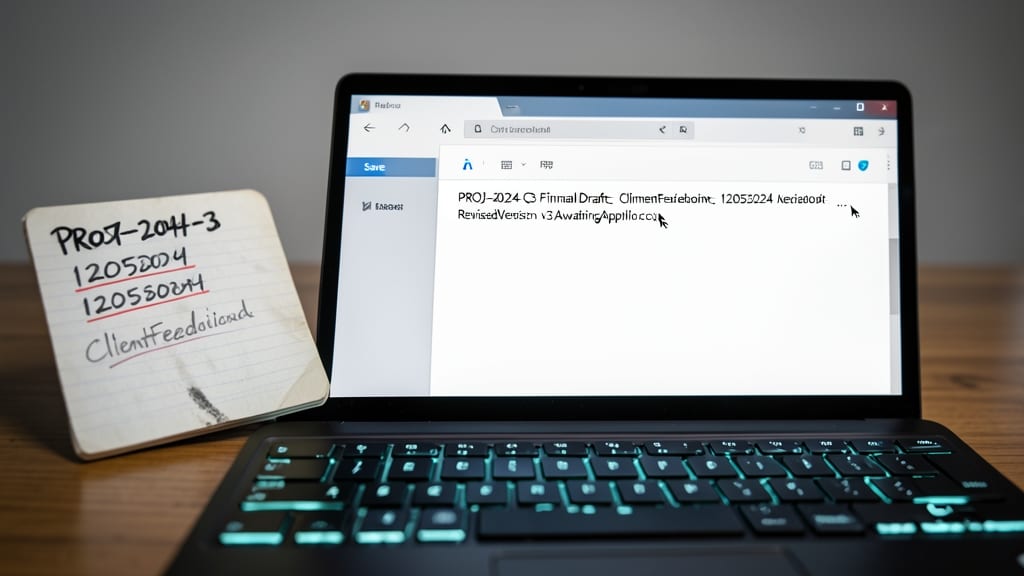
Microsoft enforces a 255-character limit on filenames—ever hit "Save" only to see your meticulous details get truncated? The key to avoiding this isn’t just staying under the limit, but prioritizing critical info first (like project codes and dates) before descriptive text.
Start with the non-negotiables: a 4-digit year (e.g., 2024), a 3-letter project code (MKT), and a short date (Q2). This leaves room for details like "FinalReport.docx" without risking truncation. Example: 2024MKTQ2_FinalReport.docx (120 chars) leaves 135 characters for notes—plenty for context without clutter.
This strategy is ideal for enterprise teams managing shared drives or freelancers juggling multiple client projects. It ensures filenames remain searchable, sortable, and intact across Windows, OneDrive, and SharePoint. ✨