
PowerPoint
PowerPoint transitions can transform a basic slideshow into a polished, professional presentation. These seven transition effects help maintain audience engagement while ensuring smooth visual flow—ideal for business, education, and creative projects.
Fade Transition for Elegant Slide Changes
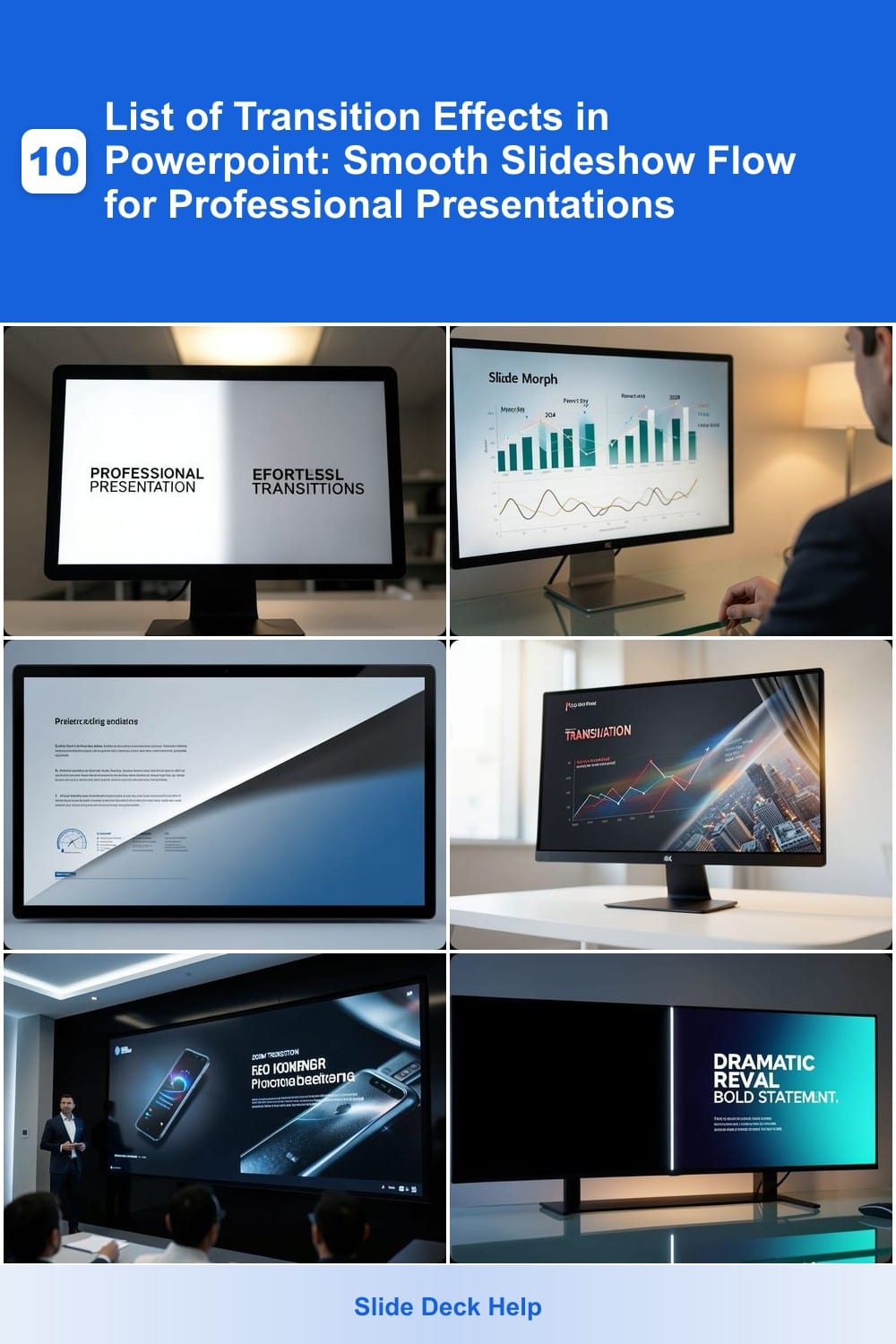
When you need to convey professionalism without overwhelming your audience, the Fade transition in PowerPoint delivers a sleek, distraction-free experience. This timeless effect dissolves one slide into the next, creating a seamless flow that keeps focus squarely on your content—not the visuals.
Available in both Subtle and Exciting styles, the Fade transition offers a customizable duration (from 0.5 to 3 seconds) and optional sound effects for added polish. Its simplicity makes it ideal for corporate reports, board meetings, or any presentation where elegance trumps flashy animations.
Perfect for executives, educators, or anyone delivering formal content, this transition ensures your message lands with clarity and sophistication. ✨
Slide Morph for Dynamic Content Shifts
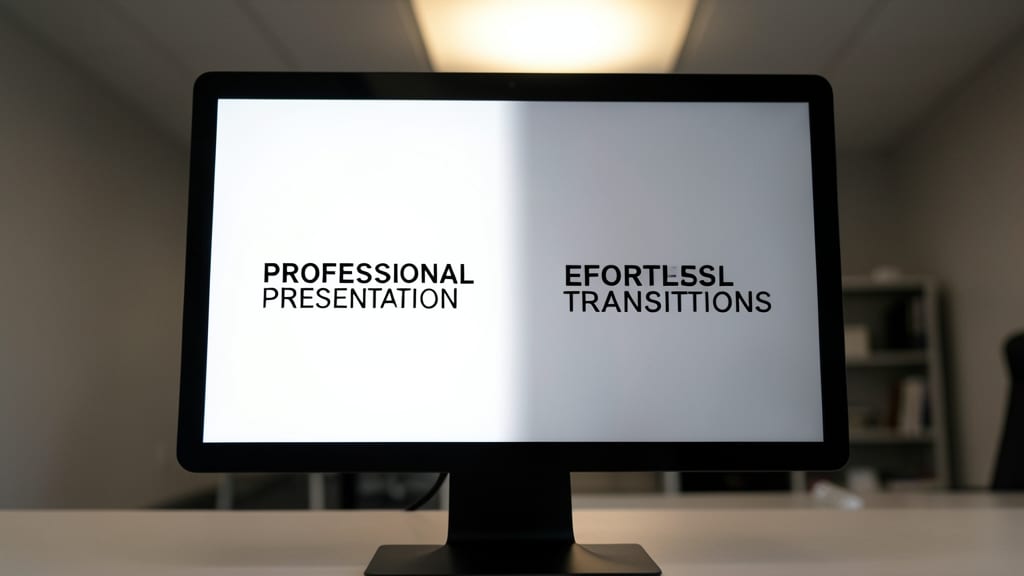
When your presentation hinges on data clarity—like a financial forecast or market analysis—Slide Morph turns static slides into a fluid storytelling tool. Unlike basic fades, this transition animates objects directly, so that charts, graphs, and key metrics evolve organically between slides.
PowerPoint’s Slide Morph (available in 2016+ versions) lets you animate individual elements—think a bar chart morphing into a pie chart—while maintaining visual hierarchy. The smooth interpolation ensures no jarring cuts, and you can control duration (0.5–5 seconds) or add subtle path animations for extra polish. For analysts, this means your audience focuses on insights, not transitions.
Perfect for data-heavy decks where visual continuity reinforces your message, Slide Morph shines in boardrooms or investor pitches. Just avoid overusing it—save this tool for your most critical shifts. ✨
Wipe Transition for Clean Visual Breaks
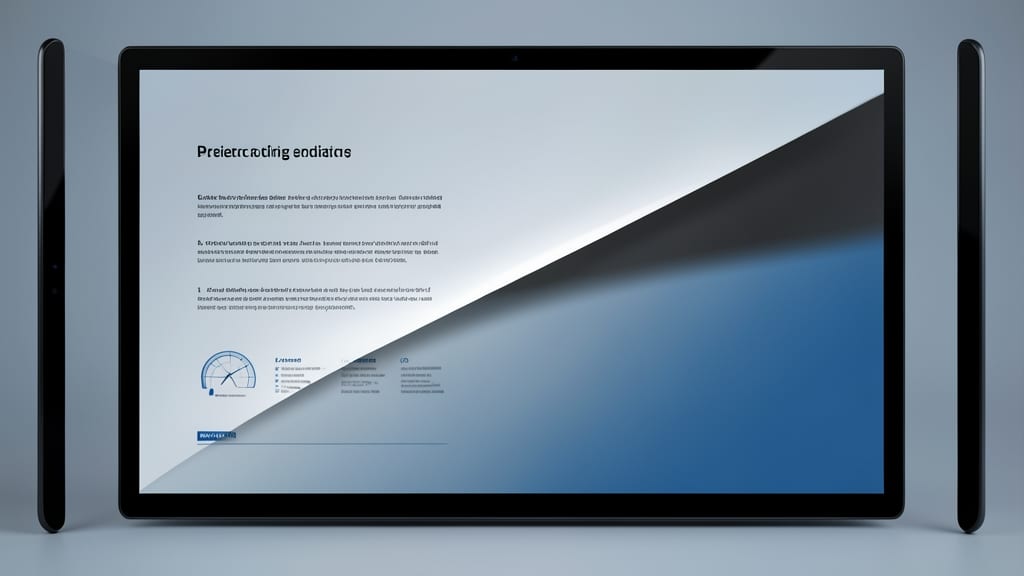
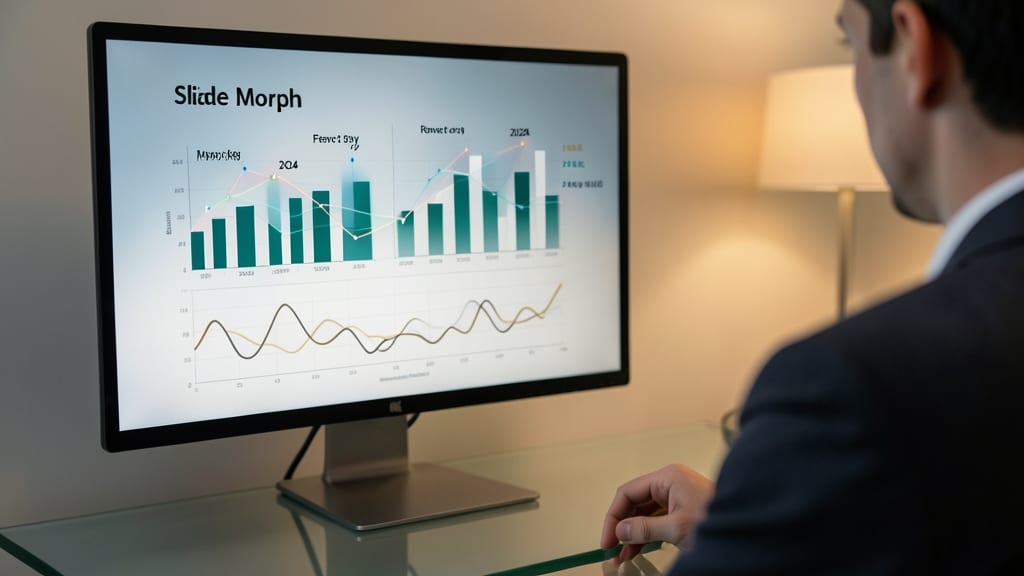
Need to signal a clear shift in your presentation—like moving from an introduction to a case study? The Wipe transition delivers that crisp separation with a satisfying, directional sweep across the screen.
Available in horizontal, vertical, or diagonal directions, this effect ensures your audience doesn’t miss the transition’s purpose—whether you’re emphasizing a new topic or wrapping up a section. The customizable speed lets you control pacing, while the subtle sound cue (when enabled) adds a professional touch without overpowering your content.
Storytellers, educators, and trainers will find this transition especially useful for structuring narratives or lesson plans where visual breaks keep audiences engaged. ✨
Push Transition for Modern Energy
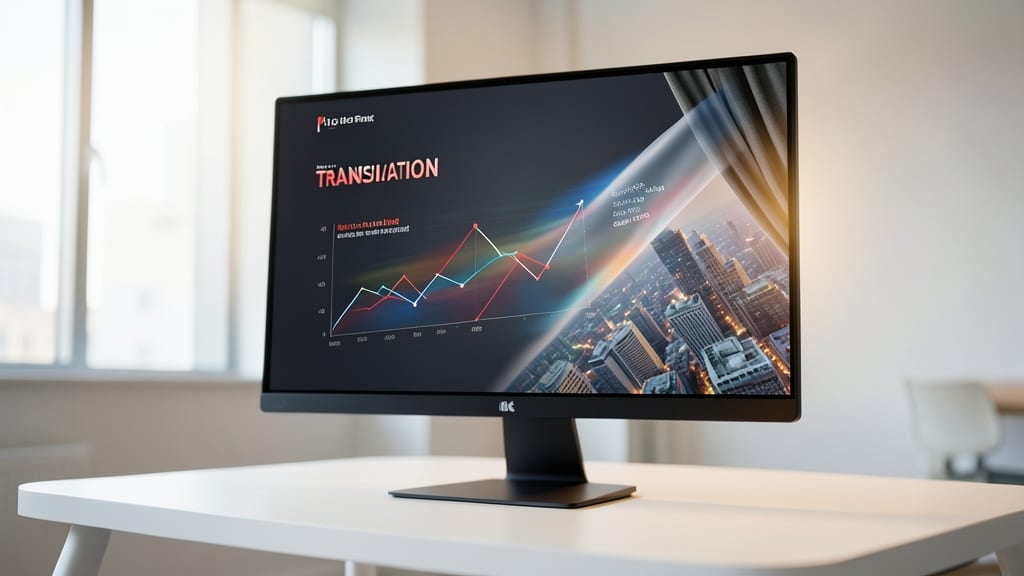
Want your presentation to feel alive with momentum? The Push Transition injects energy by sliding new content outward from the edges—like a stage curtain opening to reveal the next act.
Available in horizontal, vertical, or diagonal directions, this transition works best with Subtle or Exciting timing options (0.5–3.0 seconds). The directional motion naturally guides attention, making it ideal for highlighting key slides in creative pitches or product demos where visual impact matters. Pair it with bold typography for maximum effect.
Marketers and designers will love this for its cinematic feel, while educators can use it to signal topic shifts. Just avoid overusing it—save the drama for moments that need emphasis! ✨
Zoom Transition for Emphasis on Key Slides

Need to make sure your audience sees the big ideas? The Zoom Transition in PowerPoint delivers exactly that—by dynamically zooming in or out to spotlight critical slides. Unlike static transitions, this effect creates a cinematic reveal, perfect for product demos or keynote moments where you want to emphasize a single slide’s impact.
You can adjust the zoom direction (in or out) and speed to match your pacing, ensuring the effect feels intentional rather than distracting. Pair it with a bold design (like a headline or product image) for maximum visual punch. Pro tip: Use this sparingly—once per section—to maintain focus.
Ideal for product launches or executive presentations, this transition turns key slides into memorable moments. 🌟
Split Transition for Dramatic Reveals
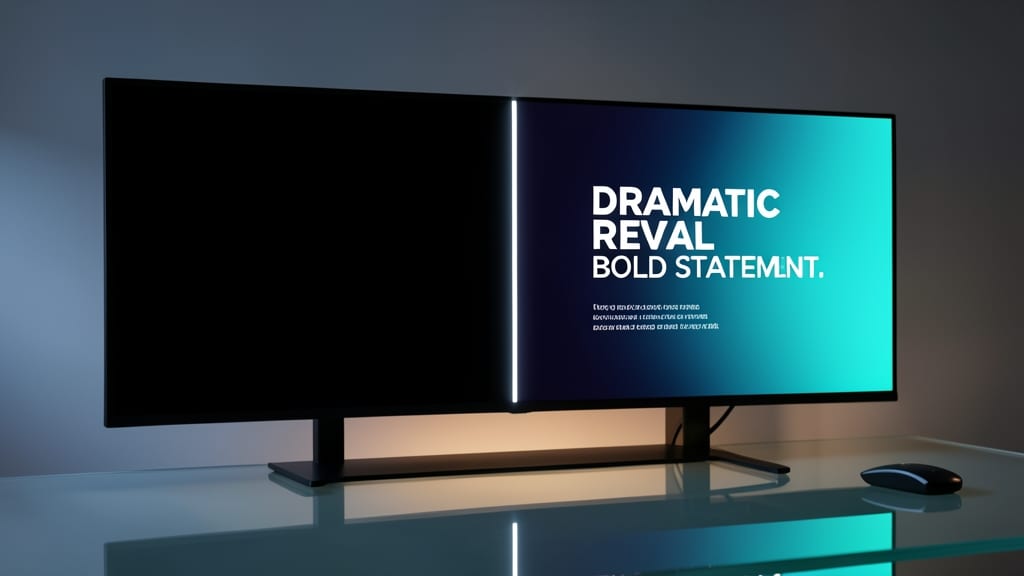
Need to make a bold statement in your presentation? The Split transition delivers exactly that by dividing the screen—either horizontally or vertically—to reveal content with cinematic flair. Unlike other transitions that blend or shift slides, this one creates a dramatic reveal, perfect for unveiling key data points, impactful quotes, or striking visuals.
You can customize the split direction and speed, ensuring the reveal aligns with your pacing. This transition shines in motivational speeches or design critiques, where you want to control when and how your audience discovers critical information. The built-in timing options let you fine-tune the reveal for maximum impact.
Ideal for presenters who want to command attention without overwhelming the audience, the Split transition is a standout choice for slides that demand focus. ✨
Random Bars Transition for Playful Presentations
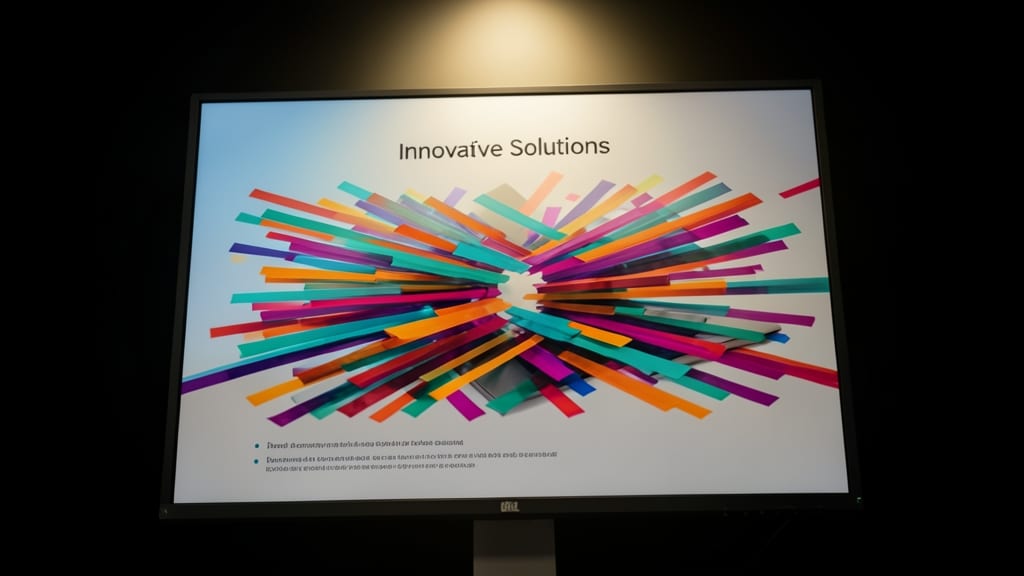
Tired of predictable slide flows? The Random Bars transition injects a burst of creativity by revealing slides through a dynamic, fragmented bar pattern—perfect for breaking monotony in brainstorming sessions or casual pitches.
This effect uses colorful, abstract bars that shift unpredictably, creating a non-linear reveal. Unlike smooth transitions, it adds visual energy without overwhelming your audience. The Exciting style category makes it stand out, ideal for presentations where you want to spark curiosity or emphasize a playful tone.
Designers, educators, or teams brainstorming new ideas will love this transition for its ability to disrupt expectations while keeping engagement high. Just avoid overusing it in formal settings—save the fun for when you want to stand out! ✨