
Software
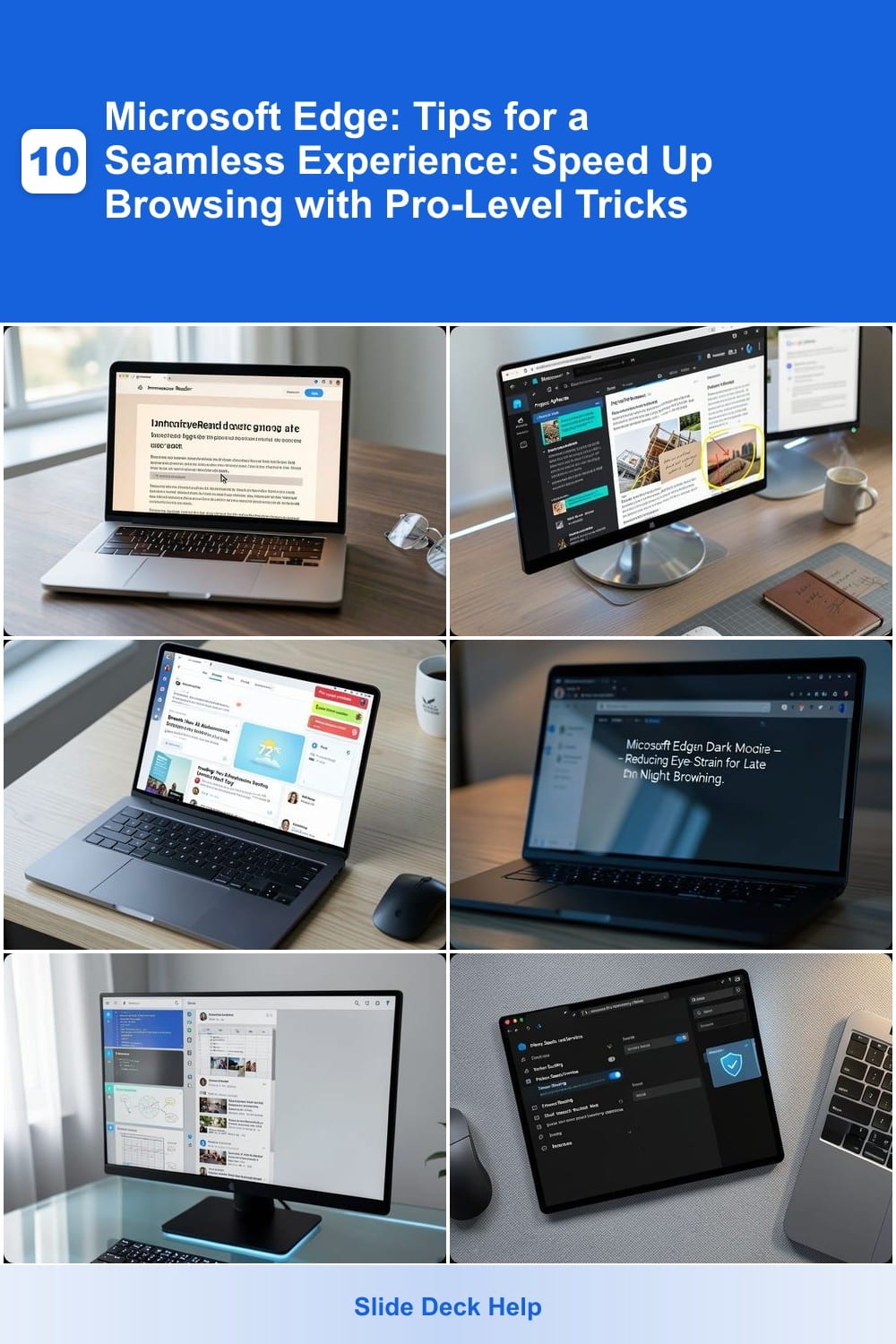
Microsoft Edge isn’t just a browser—it’s a powerhouse packed with underused features that can transform your browsing speed, security, and productivity. These seven pro-level tricks will help you navigate the web faster, smarter, and with fewer frustrations, whether you're a casual user or a tech enthusiast.
Enable Immersive Reader for Focused Reading
Struggling to focus while reading long articles or research papers? Microsoft Edge’s Immersive Reader transforms dense text into a distraction-free, dyslexia-friendly experience with just a few clicks. This built-in tool strips away clutter, offering customizable font sizes, line spacing, and even text-to-speech for hands-free reading.
To enable it, open any webpage, click the Immersive Reader icon (or type "Immersive Reader" in the address bar), and adjust settings like font style (Dyslexia, OpenDyslexic, or standard) or page color (sepia, yellow, or white). The tool also highlights text word-by-word during playback, improving comprehension for visual learners.
Perfect for students, writers, or professionals tackling dense documents, Immersive Reader works offline and syncs across devices with a Microsoft account. Try it next time you’re drowning in text—your eyes (and focus) will thank you. ✨
Use Collections to Organize Research Instantly
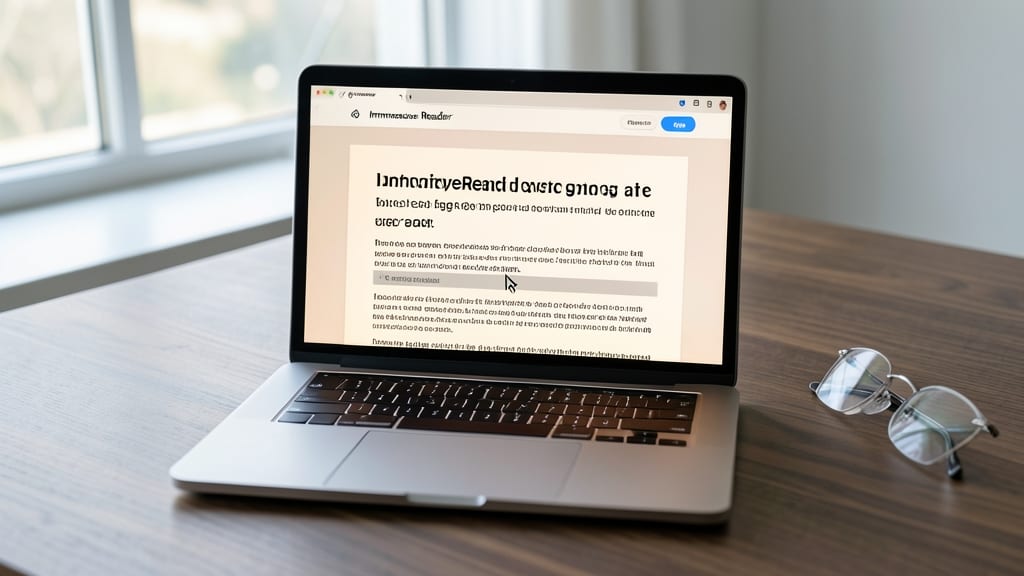
Tired of losing research notes or struggling to organize scattered tabs? Microsoft Edge’s Collections feature turns your browser into a zero-config workspace for researchers, writers, and project managers.
With a single click, save text snippets, full articles, images, and even handwritten notes—all synced to your Microsoft account. Drag-and-drop items into folders, add highlights, and share collections via link or email without leaving Edge. The offline access feature ensures your work stays available even without internet.
Perfect for academics compiling literature reviews or managers tracking project references, Collections eliminates the need for sticky notes or third-party apps. Give it a try and watch your workflow transform! ✨
Customize Startup Pages with News and Weather
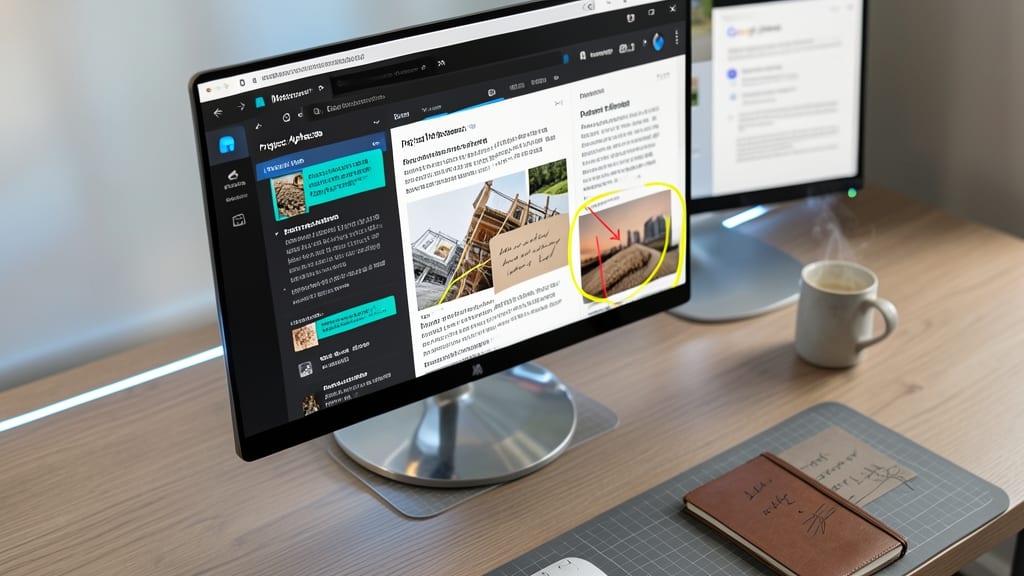
Tired of staring at a blank page every time you open Microsoft Edge? Turn your startup screen into a personalized dashboard with news, weather, and even to-do lists—all in seconds. This trick transforms your morning routine by giving you instant access to the info you need before diving into work.
Head to Settings > Startup and toggle "Open with" to "Specific pages." Here, you can add up to eight custom URLs, including your favorite news sites (like BBC or CNN), weather apps (AccuWeather), or productivity tools (Google Tasks). The sleek, minimalist layout keeps everything organized, so you’re never overwhelmed by clutter.
Perfect for busy professionals, students, or parents who want to start their day efficiently. With just a few clicks, you’ll skip the default tabs and jump straight into a tailored workspace that works for you. ✨
Enable Dark Mode for Battery Life and Eye Strain
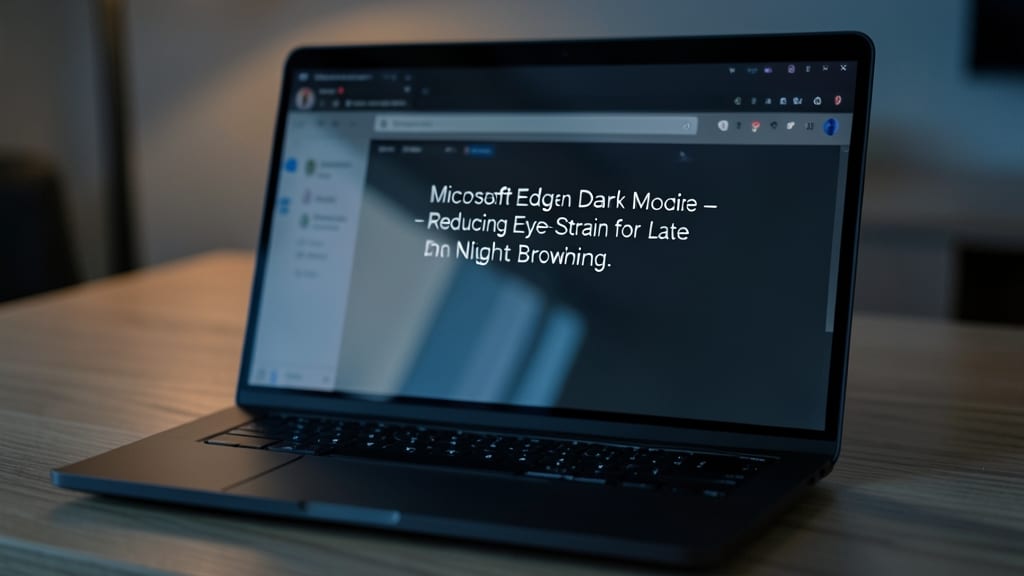
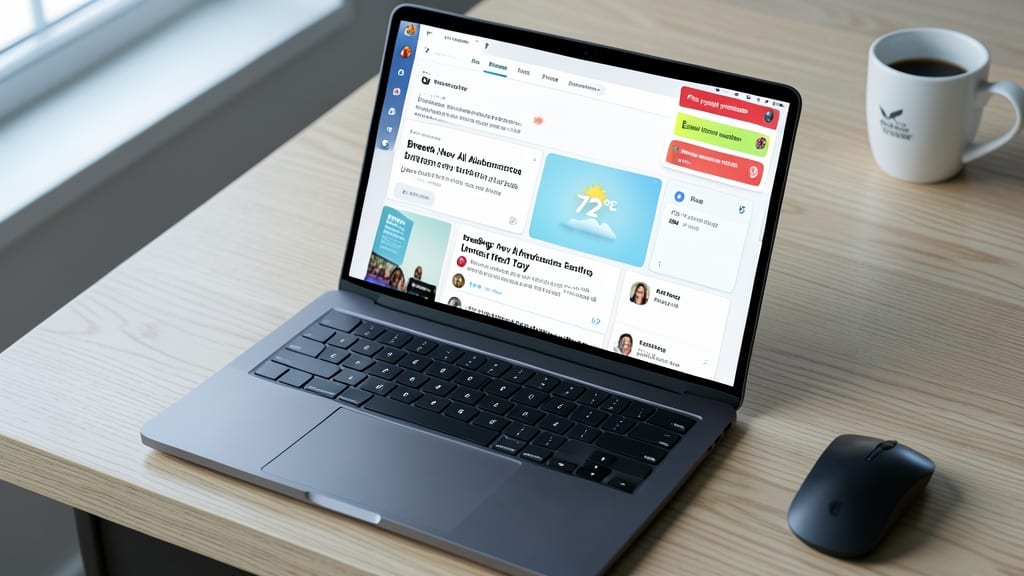
If you’re glued to your screen late at night or rocking an OLED display, Microsoft Edge’s Dark Mode is a game-changer. Beyond just looking sleek, it cuts down on blue light exposure—proven to reduce eye strain and improve sleep quality—while also extending battery life on devices like laptops and tablets.
To enable it, head to Settings > Appearance and toggle Dark mode on. The switch automatically adjusts the browser UI and many websites to a deep, low-blue-light theme. For OLED users, this also means less screen burn-in over time. Plus, it’s a subtle nod to accessibility, making long sessions less taxing on your eyes.
Night owls, developers working late, or anyone with an OLED screen will appreciate how this simple tweak transforms both comfort and performance. ✨
Speed Up Tabs with Vertical Tabs Feature
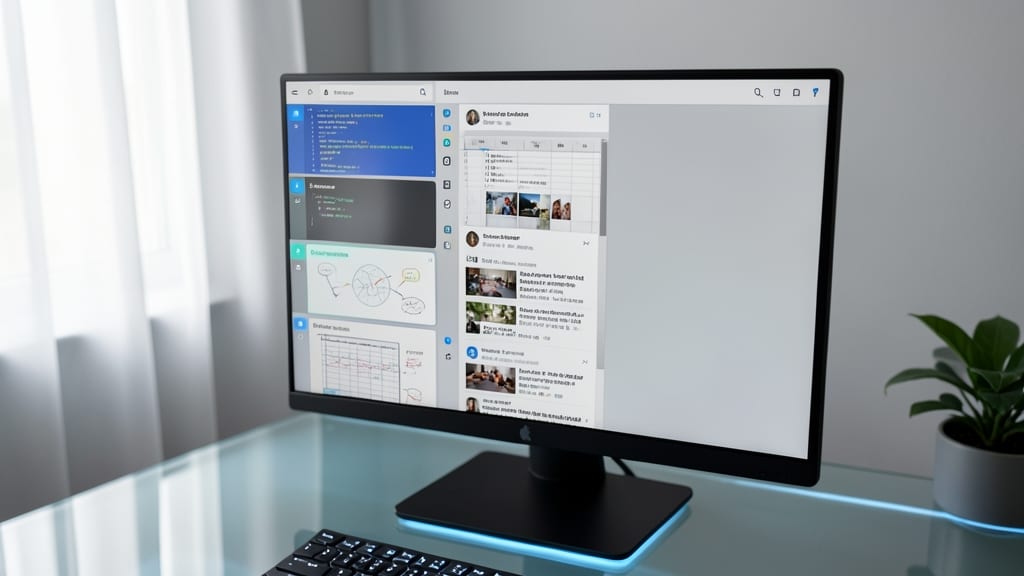
Juggling 10+ tabs for work projects? Microsoft Edge’s vertical tabs feature turns clutter into clarity by stacking tabs vertically along the left side of your screen. This side-by-side layout keeps all your open pages visible without sacrificing workspace—ideal for developers debugging across multiple tools or designers comparing reference sites.
Enable it in Settings > Appearance (Windows) or Edge Menu > Settings > Appearance (macOS), then toggle "Vertical tabs" to on. The feature supports drag-and-drop reordering, tab grouping, and keyboard shortcuts (like Ctrl+Tab for navigation) for seamless multitasking. It’s especially useful on 4K monitors where screen real estate matters most.
Perfect for power users who hate tab overload—try it when managing research, coding, or creative workflows. Your desk (and eyes) will thank you. ✨
Block Ads and Trackers with Built-In Privacy Tools
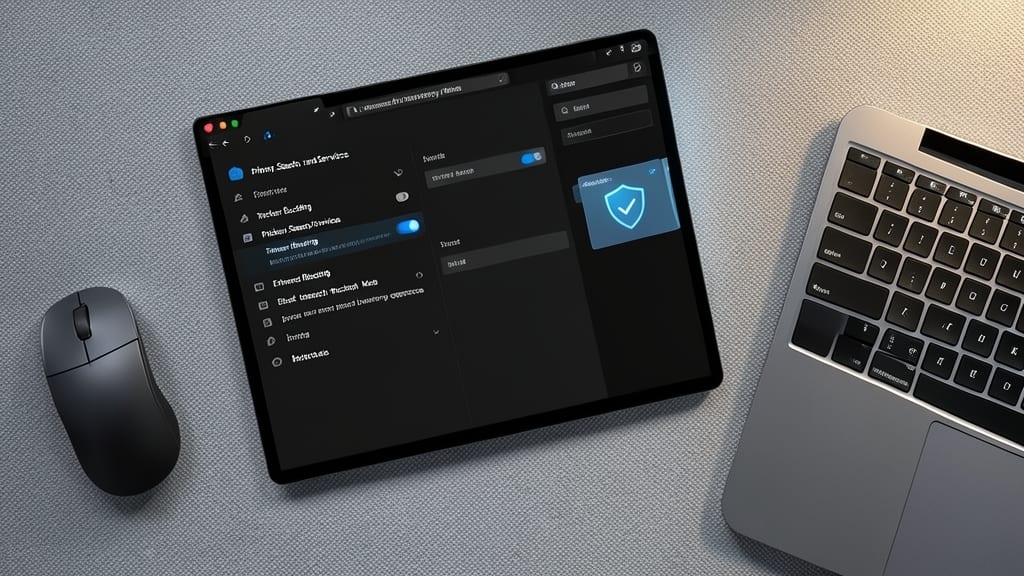
Tired of ads hijacking your browsing experience? Microsoft Edge’s built-in privacy tools—like Tracker Blocking and Enhanced Privacy Mode—can eliminate intrusive ads and third-party trackers without relying on extensions.
Enable Tracker Blocking in Settings > Privacy, Search, and Services to block known trackers, then toggle Enhanced Privacy Mode for stricter protection. These tools work seamlessly with Microsoft Defender SmartScreen to filter malicious sites, too. No extensions, no clutter—just faster, safer browsing.
Perfect for users who prioritize speed and security, this is a must-try for anyone frustrated by ads slowing down their workflow. ⚡
Sync Settings Across Devices with Microsoft Account
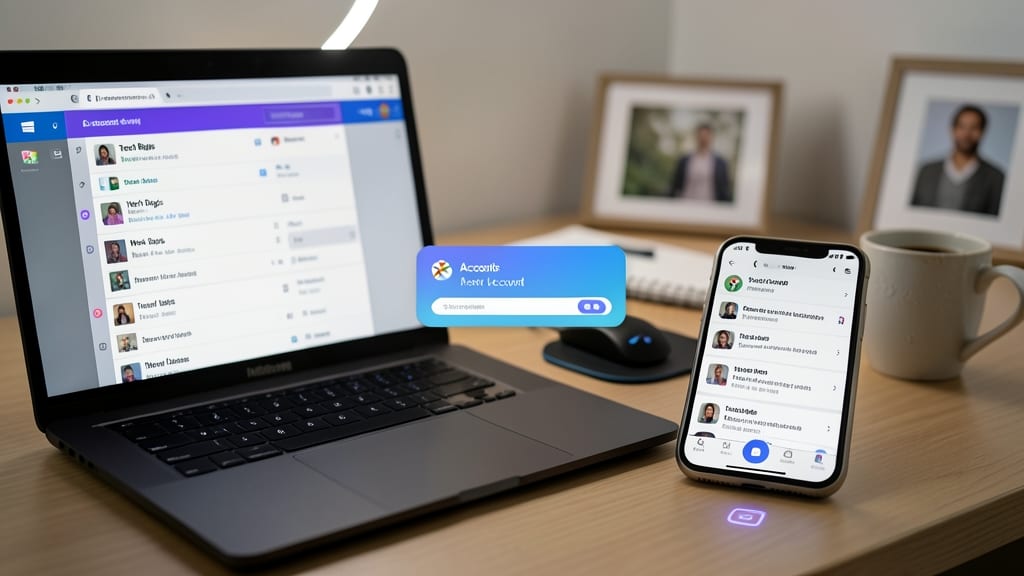
Tired of manually transferring bookmarks or extensions every time you switch devices? Microsoft Edge’s built-in sync with your Microsoft Account eliminates that hassle entirely. With just a few clicks, your bookmarks, browsing history, extensions, and even open tabs stay perfectly aligned across your phone, tablet, and PC—no third-party apps or cloud services required.
To get started, sign in to Edge with your Microsoft Account (Settings > Profiles > Sign in). Once connected, your data syncs automatically in the background, ensuring you pick up right where you left off. The feature even supports password storage (via Microsoft Password Manager) and favorites folders, so your workflow stays consistent. It’s especially useful for professionals juggling multiple devices or students accessing research across platforms.
This is the ultimate solution for seamless cross-device browsing—no more lost tabs or fragmented workflows. ⚡