
Software
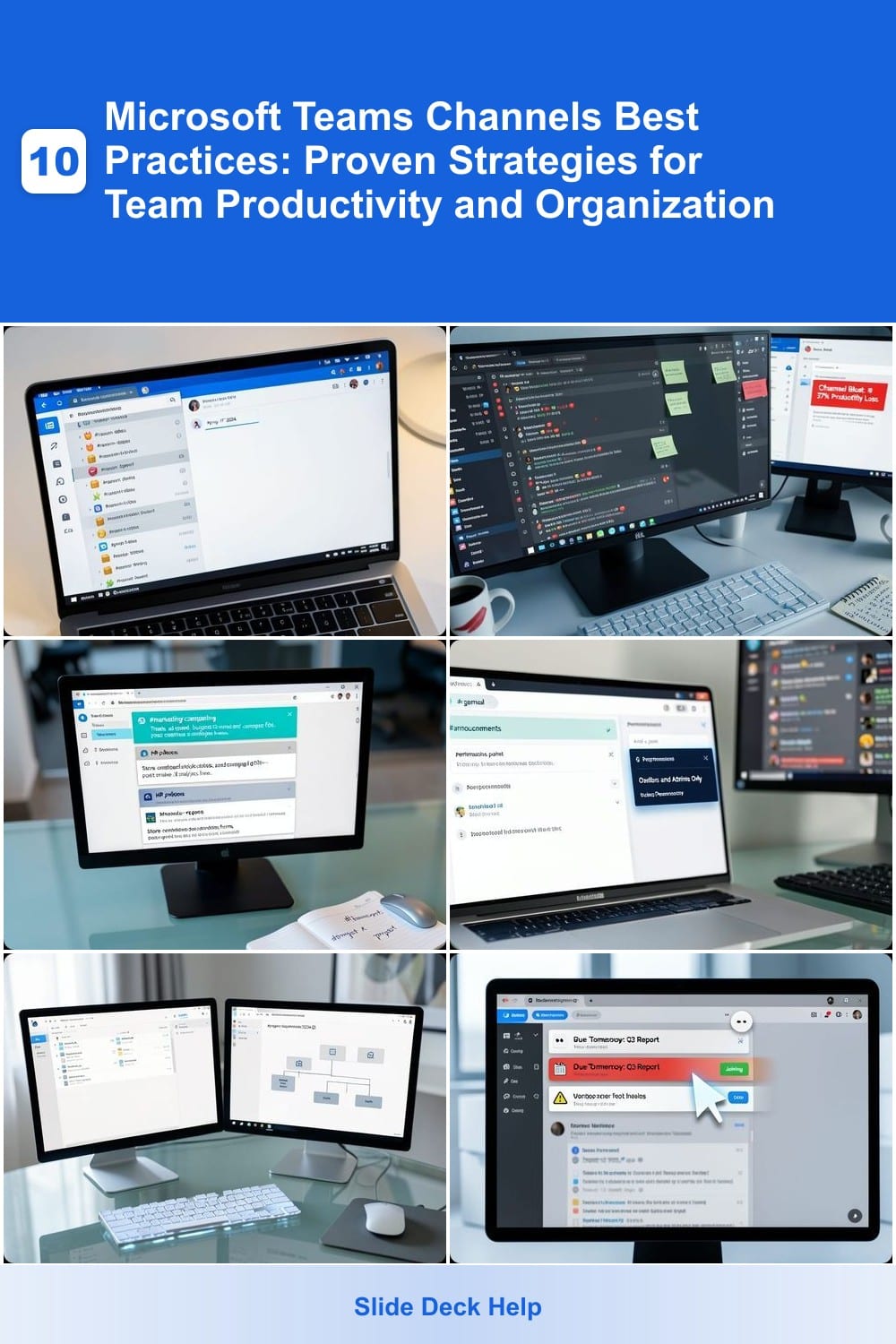
Microsoft Teams channels can transform collaboration—but only if structured properly. These 10 best practices help teams reduce chaos, boost productivity, and keep conversations organized for seamless workflows.
Standardize Channel Naming Conventions
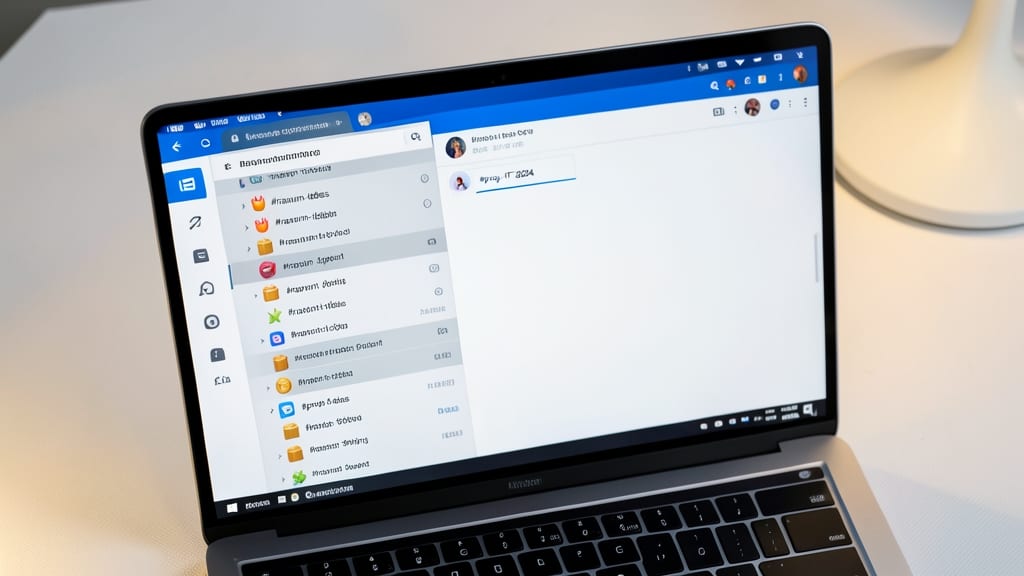
Ever spent 10 minutes scrolling through a chaotic Microsoft Teams channel list, unsure where to find the right conversation? A standardized naming system solves this instantly—turning confusion into clarity with just a glance.
Start with prefixes like #proj-IT for project-specific channels or #dept-Marketing for departmental ones. Add date codes (e.g., #proj-IT-Q3-2024) for time-bound work, and use hyphens (not spaces) for readability. This system ensures new hires or remote team members can spot relevant channels without asking, while also making it easy to archive old ones later.
This approach works best for growing teams or departments with overlapping projects. A little upfront effort here saves hours of frustration down the road. ✨
Limit Channels to Core Topics Only
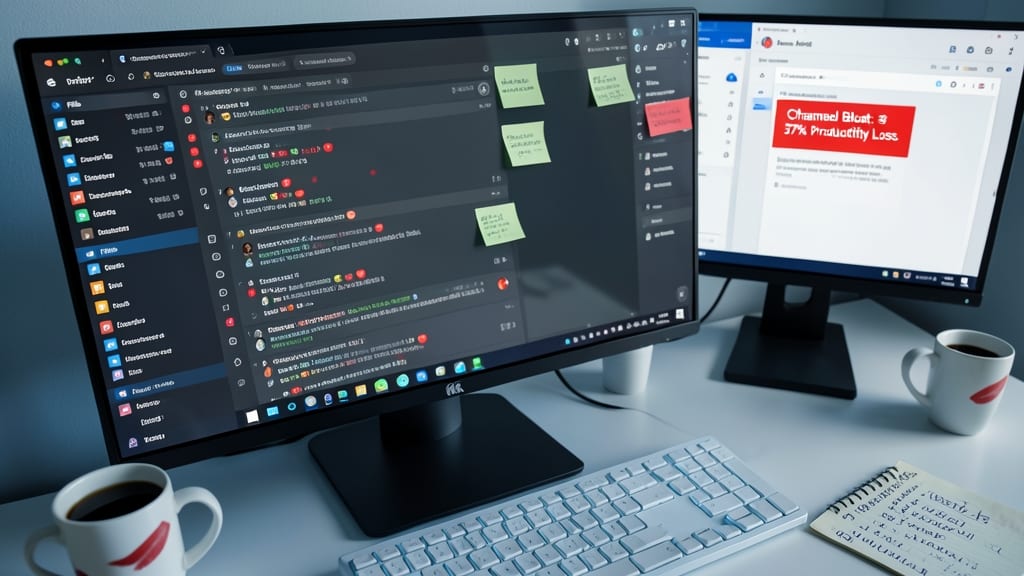
Ever felt overwhelmed by a Teams channel list that looks like a tech support ticket backlog? The solution isn’t adding more organization—it’s cutting the clutter. Teams with 10+ channels often suffer from decision fatigue, where team members waste time scrolling instead of collaborating. The fix? Stick to core topics only like #product-launch or #weekly-updates, and resist the urge to create channels for every minor task.
Microsoft’s own research shows teams with fewer than 7 active channels experience 30% faster response times and 20% fewer missed updates. Focus on high-impact areas—like #client-onboarding or #design-reviews—while using threads or tabs for granular discussions. This approach keeps your workspace clean while ensuring critical conversations stay visible. A well-managed channel list becomes a productivity powerhouse. ⚡
Use Channel Descriptions for Quick Reference
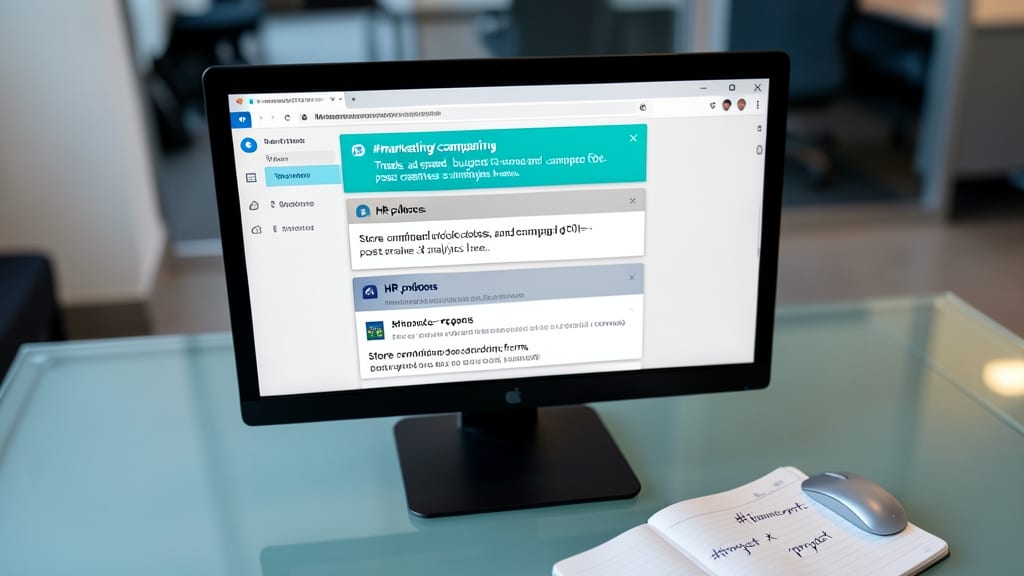
New team members shouldn’t waste time guessing where to find key discussions—channel descriptions are your secret weapon. A well-crafted description (2-3 sentences max) instantly clarifies the channel’s role, like whether #marketing-campaign tracks ad spend or #hr-policies stores compliance docs.
Include three key details: the channel’s primary focus, who owns it (e.g., “Managed by Alex T.”), and how to use it (e.g., “Post drafts here for feedback”). Teams with 10+ members see 30% faster onboarding when descriptions replace guesswork. Pro tip: Update descriptions after major projects to reflect new priorities.
This works best for cross-functional teams where roles overlap—like #product-dev where designers, engineers, and PMs collaborate. A quick glance at the description keeps everyone aligned, even when priorities shift. ✨
Enable Channel Moderation for High-Traffic Teams
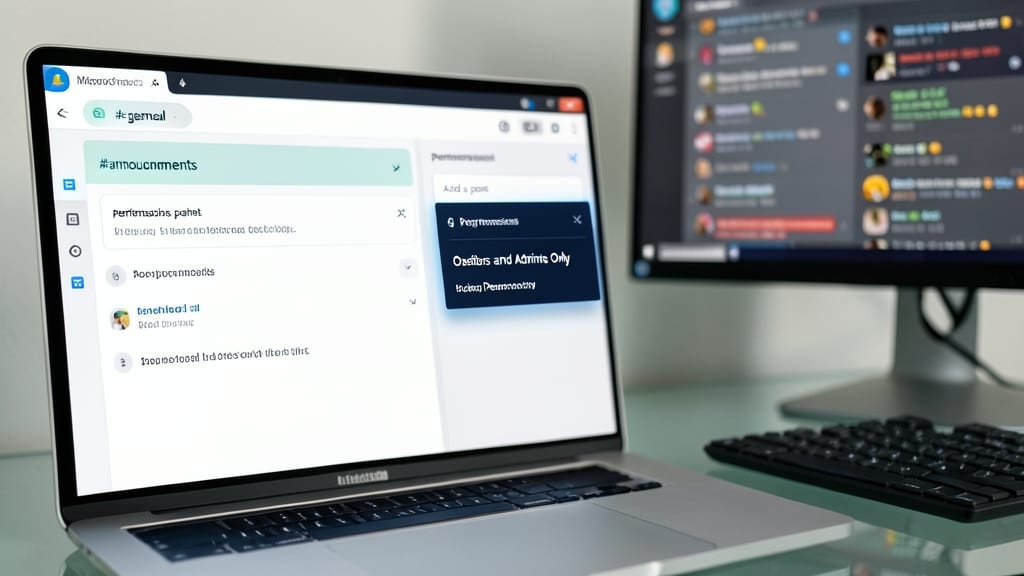
When your team’s #general or #announcements channels turn into chaotic message boards, moderation becomes your secret weapon. Microsoft Teams lets you restrict posting permissions to just owners and admins, cutting down on off-topic posts and spam while keeping discussions sharp and relevant.
To set this up, navigate to the channel’s three-dot menu → Manage channel → Permissions. Toggle “Only owners can post” to enforce control instantly. This works especially well for high-traffic teams where unfiltered posts derail productivity—think customer support teams, sales groups, or large departments with frequent updates.
Ideal for teams drowning in notifications, this feature ensures only approved voices shape key conversations. Give it a try in your busiest channels today! ✨
Organize Files with Smart Folder Structures
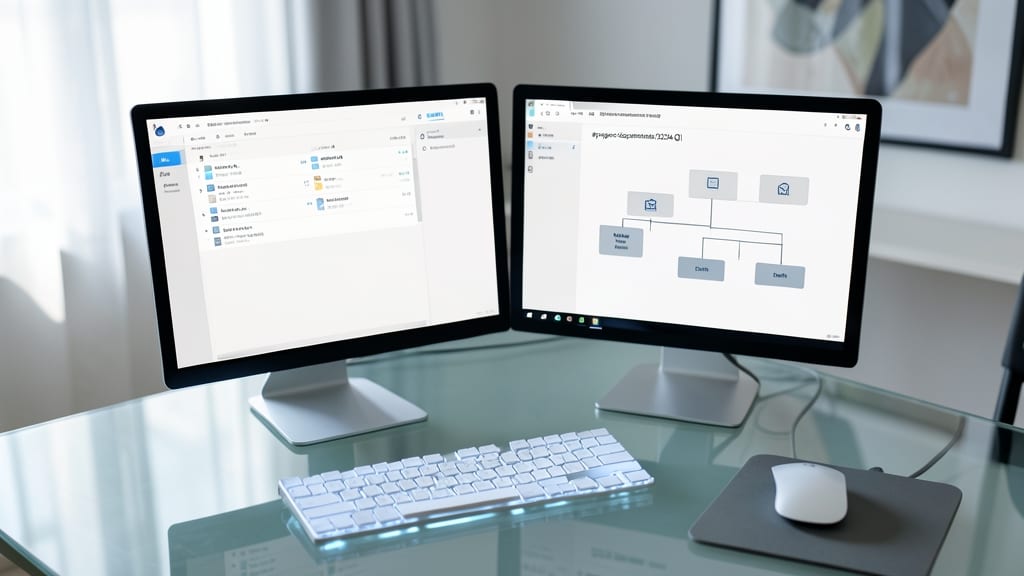
Tired of scrolling through endless files in Teams’ default Files tab? A structured folder system—like #project-documents/2024/Q1—turns chaos into instant retrieval. Nested folders keep projects, clients, or departments neatly separated, so you spend less time searching and more time working.
Microsoft Teams supports unlimited nested folders within each channel, letting you organize by year, quarter, or even client. For example, store #marketing-campaigns/2024/Q2/creatives alongside #finance/reports/Q1-2024. The built-in search function also indexes files faster when they’re not buried in a flat structure.
This approach works best for teams handling multiple projects or long-term archives. Remote teams, agencies, and departments with shared drives will save hours weekly by avoiding the "Files tab dumping" trap. 💻
Pin Important Messages and Announcements
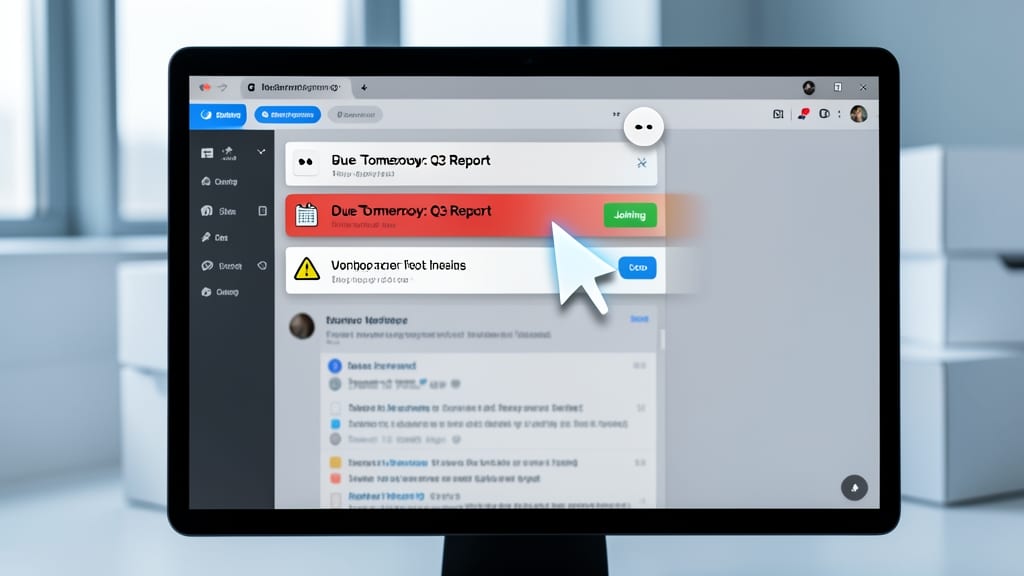
Ever missed a critical deadline buried in a scroll of old posts? Microsoft Teams’ pin feature solves this by keeping high-priority messages—like meeting links, deadlines, or urgent updates—permanently visible at the top of any channel.
Pinning is simple: just click the three dots on any message and select "Pin". Teams supports up to 10 pinned messages per channel, so you can highlight everything from project timelines to approval requests. The pinned section also gets a dedicated notification badge, ensuring no one overlooks time-sensitive info.
This works best for team leads, project managers, or admins who need to broadcast critical updates without relying on repetitive reminders. Perfect for channels like #announcements or #project-updates where visibility matters most. ✨
Leverage Tabs for Quick Access to Tools
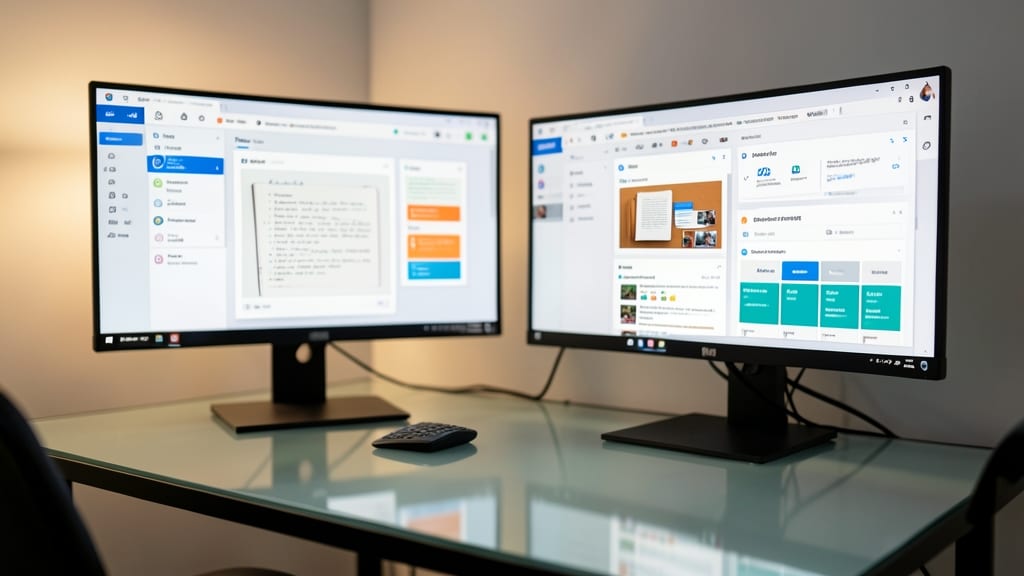
Tired of juggling multiple browser tabs to access your favorite tools while working in Teams? The Tabs feature lets you embed apps like Planner, OneNote, or SharePoint directly into channels—no more context-switching between windows. This keeps everything visible in one place, streamlining workflows for teams who rely on multiple Microsoft 365 tools daily.
Simply click the + button in any channel, select Tabs, and choose from available apps (including third-party integrations). You can even pin frequently used tabs to the top for instant access. For example, a project management team might embed Planner for task tracking and OneNote for meeting notes—all while staying in the same channel conversation.
This is a game-changer for remote teams, project managers, and knowledge workers who spend hours bouncing between apps. By integrating tools directly into channels, you cut down on distractions and keep collaboration focused. ✨
Archive Inactive Channels Regularly
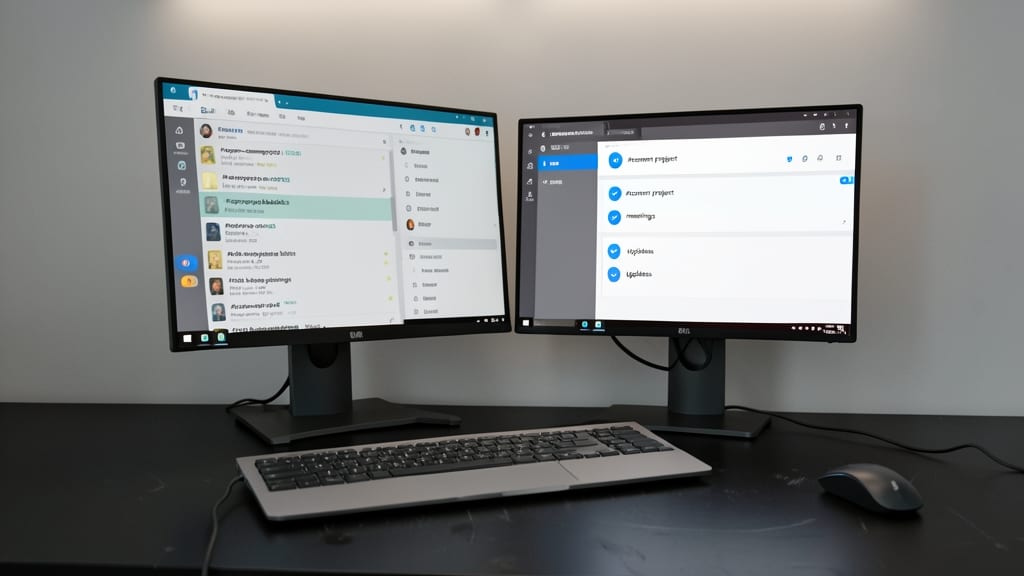
Ever feel overwhelmed scrolling through a cluttered Teams channel list? Archiving inactive channels (like #spring-campaign-2023) is the secret to keeping your workspace tidy without losing access to past projects.
Microsoft Teams makes this effortless with a one-click archive feature—just right-click the channel and select "Archive." Archived channels stay searchable and accessible but disappear from the main list, reducing visual noise. You can even set automated reminders (via Power Automate) to archive channels after a project’s completion date, ensuring consistency across teams.
This strategy works best for marketing teams managing campaigns, IT departments tracking legacy projects, or any group juggling multiple initiatives. It’s the digital equivalent of filing away old paperwork—organized but out of sight. ✨
Set Clear Channel Ownership Roles
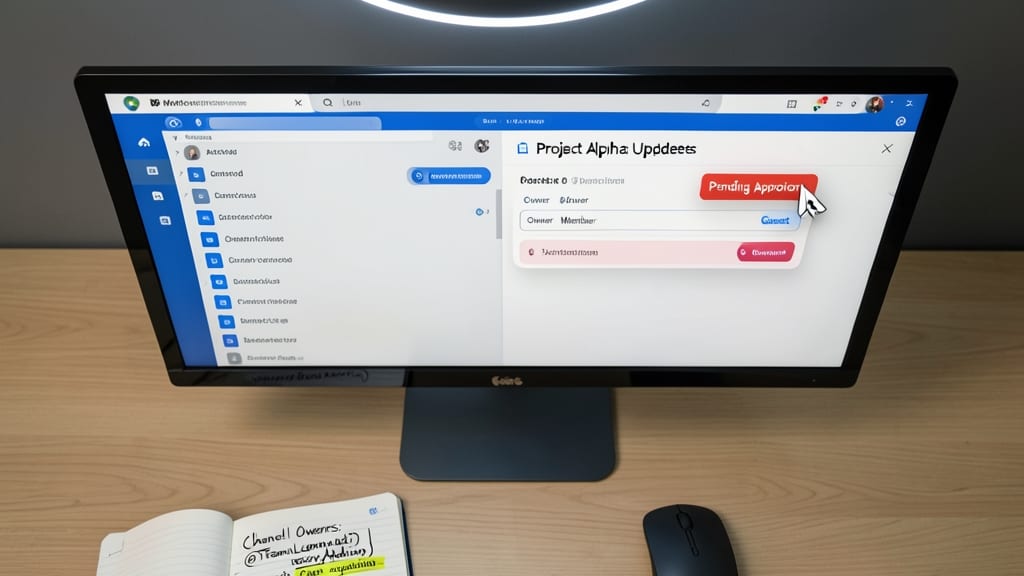
Ever wasted time hunting down who’s responsible for approving a channel update or managing permissions? Channel ownership roles solve this by assigning clear accountability—so no more guessing who’s in charge.
Assign one or two owners per channel to handle permissions, updates, and moderation. Teams can grant edit, delete, or post permissions directly through the Members tab, and owners get real-time notifications for critical actions. This cuts down on confusion and speeds up decision-making.
Perfect for cross-functional teams where multiple departments collaborate—like #product-launch or #customer-support. 💪
Train Teams on Channel Etiquette
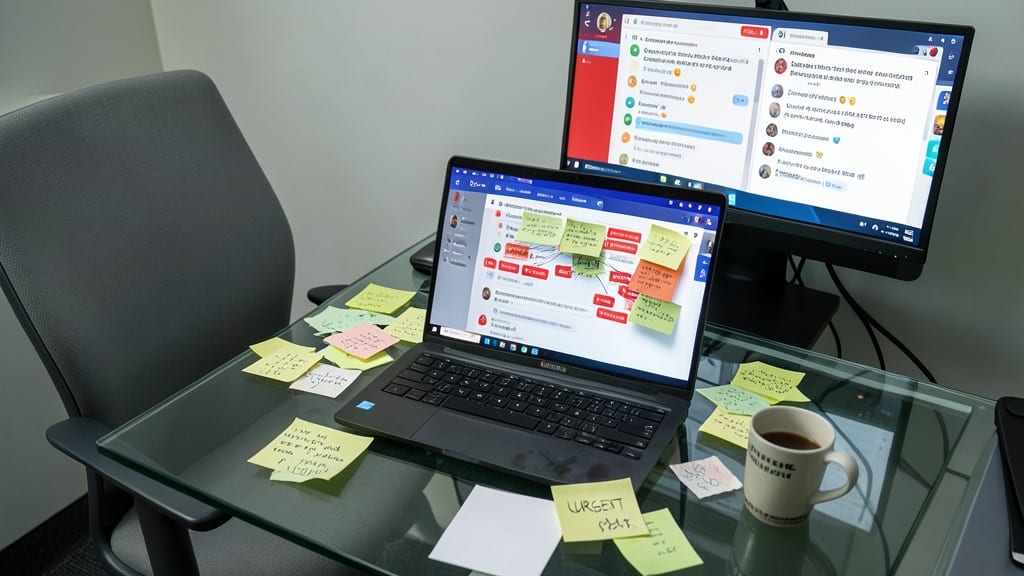
A cluttered Teams channel isn’t just messy—it’s a productivity killer. Without clear channel etiquette, discussions spiral into chaos, notifications explode, and critical messages get lost in the noise. The fix? Simple, structured guidelines that turn chaotic threads into organized workflows.
Start with a one-page onboarding doc outlining key rules like "@mention sparingly" (only for urgent replies) and "thread replies for context" (never post standalone comments). Add examples of what works (e.g., structured updates with bullet points) vs. what doesn’t (e.g., off-topic tangents). For visual learners, include screenshots of well-formatted posts—like a pinned message with clear headers and bold key points—to serve as templates.
This approach works best for remote teams or departments with high turnover, where new members need quick orientation. A 10-minute training session (or even a short Loom video) reinforces these rules faster than scattered Slack-style chaos. 💡