
Tip & Trick
Cyber threats targeting remote workers are evolving faster than ever. These 10 security best practices—backed by real-world incidents—will help you fortify your digital workspace before hackers exploit vulnerabilities you didn’t even know existed.
Zero Trust Network Access Implementation Guide

Forget "trust but verify"—zero trust network access flips the script by assuming no device is safe by default. This model forces continuous authentication for every access request, whether you're logging in from a corporate laptop or your personal tablet.
With solutions like Microsoft Azure AD Conditional Access or Cisco Duo Beyond, you can enforce multi-factor authentication (MFA) per session, encrypt traffic with TLS 1.3, and integrate with SIEM tools for real-time threat detection. The key is least-privilege access: users only get permissions for the specific resources they need, and only after verifying their identity and device health.
This approach is a game-changer for hybrid teams where personal devices mix with corporate assets. Start with pilot programs for high-risk departments like finance or R&D, then expand based on what works best for your workflow. ⚡
Multi-Factor Authentication for Every Account
Most breaches start with stolen credentials—yet many remote workers still rely on passwords alone. Multi-factor authentication (MFA) isn’t just for email anymore; it’s the invisible shield that stops 99.9% of automated attacks before they even reach your systems.
Hardware keys like YubiKey or app-based solutions (Google Authenticator, Microsoft Authenticator) add a second layer beyond passwords. Unlike SMS codes (which can be intercepted), these methods require physical devices or cryptographic proofs—making brute-force attacks useless. Even better, FIDO2-compatible keys work across platforms without extra apps.
This isn’t just for IT admins—every remote worker should enable MFA for work accounts, from Slack to project tools. Start with the most critical apps, then expand. Your future self (and your team) will thank you. ⚡
Secure VPN Configuration Checklist
Public Wi-Fi is a hacker’s playground—but a properly configured VPN turns it into a fortress. The difference between a secure session and a data leak often comes down to three settings: split tunneling, kill switches, and AES-256 encryption. Skipping any of these leaves your traffic vulnerable, even on encrypted connections.
Start by enabling split tunneling to route only sensitive traffic (like work emails or banking) through the VPN, while keeping local browsing (e.g., Netflix) off the encrypted tunnel—this improves speed and security. Next, activate the kill switch to auto-cut internet access if the VPN drops, preventing accidental leaks. Finally, verify your VPN uses AES-256 encryption (or better) with a modern protocol like WireGuard or OpenVPN. Tools like ProtonVPN or NordVPN offer one-click setups for these features, but always double-check with their audit reports.
This setup is a must for freelancers, travelers, and café workers—anyone connecting to untrusted networks. A misconfigured VPN can expose your data in seconds, but these steps ensure your traffic stays locked down, even on the shadiest Wi-Fi hotspots. 💻
Endpoint Detection and Response Setup

Ransomware attacks now strike every 40 seconds—and most start with an infected personal device. An Endpoint Detection and Response (EDR) setup acts like a cybersecurity guard dog, scanning for suspicious behavior before malware can take hold.
Modern EDR solutions like CrowdStrike Falcon or SentinelOne use AI-driven threat hunting to detect ransomware strains like LockBit or BlackCat in real-time, even if they bypass traditional antivirus. They also provide forensic reports to trace how an attack breached your system, helping prevent future incidents. Deployment is simple—agent-based tools install in minutes and work across Windows, macOS, and Linux.
This is non-negotiable for anyone handling sensitive work files on personal devices. Freelancers, remote developers, and executives all need this layer of protection to stay ahead of evolving threats. ⚡
Password Manager with Breach Monitoring
Tired of hearing about another data breach where reused passwords got hackers into systems? A password manager with breach monitoring is your first line of defense—automatically detecting and replacing compromised credentials before attackers exploit them.
Tools like Bitwarden or 1Password scan the dark web for exposed passwords and generate 25+ character passphrases (like "CorrectHorseBatteryStaple") that are impossible to crack. They also block credential stuffing attacks by 80%—a stat backed by industry reports. The best ones integrate with browsers and apps, so you never have to remember a master password again.
This is non-negotiable for freelancers, remote teams, and anyone with more than 5 accounts. Start with a free tier, then upgrade for advanced features like shared vaults or YubiKey support. 🌟
Secure File Sharing Protocol Guide

Tired of trusting consumer-grade cloud services with sensitive client documents? Secure file sharing protocols like S/MIME (RFC 8551) and OpenPGP (RFC 4880) offer military-grade encryption (AES-256) that even government agencies rely on—far stronger than Dropbox’s default settings.
These protocols encrypt files end-to-end, ensuring only authorized recipients can decrypt them—even if your email or cloud storage is breached. Tools like ProtonMail Bridge or Tutanota integrate seamlessly with Outlook, while Virtru adds watermarking and expiration dates to prevent unauthorized sharing. Unlike traditional cloud services, these methods don’t require third-party access to your data, eliminating the risk of accidental leaks through misconfigured permissions.
Perfect for legal teams, healthcare professionals, or anyone handling HIPAA/GDPR-compliant data, these protocols turn file sharing into a zero-trust process. 🔧
Phishing Simulation Training Program
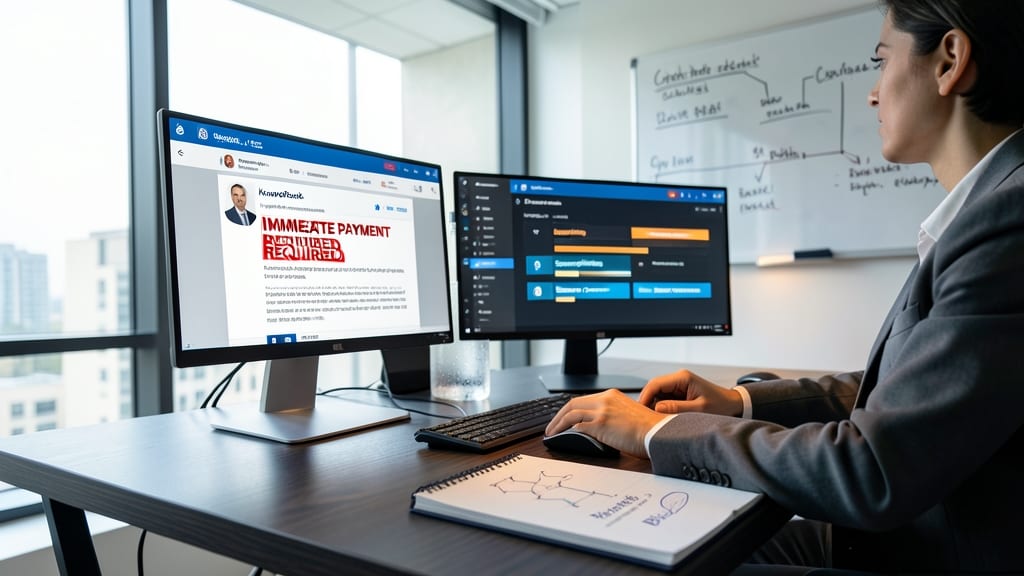
Your strongest defense against phishing isn’t firewalls or encryption—it’s human awareness. A phishing simulation training program like KnowBe4 or Proofpoint delivers hyper-realistic attack simulations, including CEO fraud emails and urgent payment requests, to train employees on the spot.
These programs track click-through rates in real time, with customizable scenarios that mimic actual threats. Studies show they cut phishing success rates by 75%—far beyond what static security awareness training achieves. Most platforms include automated reporting to identify high-risk users and track progress over time.
Ideal for small businesses to enterprises, these tools require minimal IT overhead. Start with a pilot program targeting departments handling payments or sensitive data. 💡
Device Encryption and Remote Wipe Policy
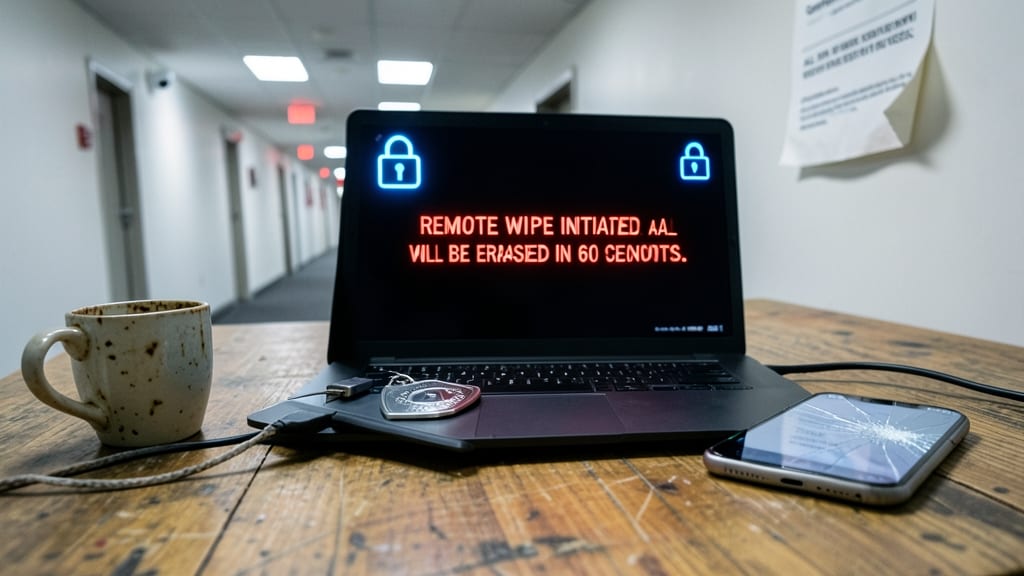
Losing a laptop or phone isn’t just a productivity nightmare—it’s a compliance nightmare if sensitive data isn’t protected. A Device Encryption and Remote Wipe Policy ensures your drives are locked down with AES-256 encryption by default, while giving IT admins the power to instantly erase lost or stolen devices remotely.
Most modern operating systems (Windows, macOS, and Android) include built-in encryption tools like BitLocker, FileVault, or Android Enterprise, but the real game-changer is zero-configuration remote wipe—no need for complex setups. Services like Microsoft Intune or Jamf automate this for entire fleets, meeting HIPAA, GDPR, and SOX requirements without manual intervention.
This isn’t just for IT departments—freelancers and small businesses handling client data should enable device-level encryption (like Apple’s Activation Lock or Google’s Find My Device) to deter theft. One click to wipe a lost device could save you from a $100K+ breach fine. ✨
Secure Home Office Setup Checklist

Your home office might be the weakest link in your security chain—especially if you’ve never checked whether your smart thermostat or Wi-Fi router is still using default passwords. A single unsecured IoT device can give attackers a foothold into your entire network, turning your workspace into a gateway for malware or data theft.
Start by resetting router admin credentials and disabling WPS/WPA2 in favor of WPA3 encryption. Use a dedicated IoT network to isolate smart devices, then scan for outdated firmware using tools like Firmware Check or Shodan. Change default passwords on smart plugs, cameras, and printers—many are still factory-set and easily guessed.
This checklist is perfect for freelancers, remote teams, or anyone sharing a workspace where physical security often gets overlooked. A few minutes of setup now can prevent a nightmare later. ✨
Incident Response Plan Template

When every minute counts during a breach, having a pre-built incident response plan means the difference between a contained leak and a full-blown crisis. This template includes NIST-aligned containment procedures for ransomware, data leaks, and credential theft—all designed to be actionable within the first critical 60 minutes.
The template covers automated isolation steps (disconnecting infected devices from networks), communication protocols (internal alerts vs. public disclosures), and forensic preservation (documenting evidence for investigations). It even includes a playbook for remote workers to follow if they suspect their personal device is compromised.
Perfect for SMBs and mid-sized teams lacking dedicated security staff, this plan turns panic into action. 💪